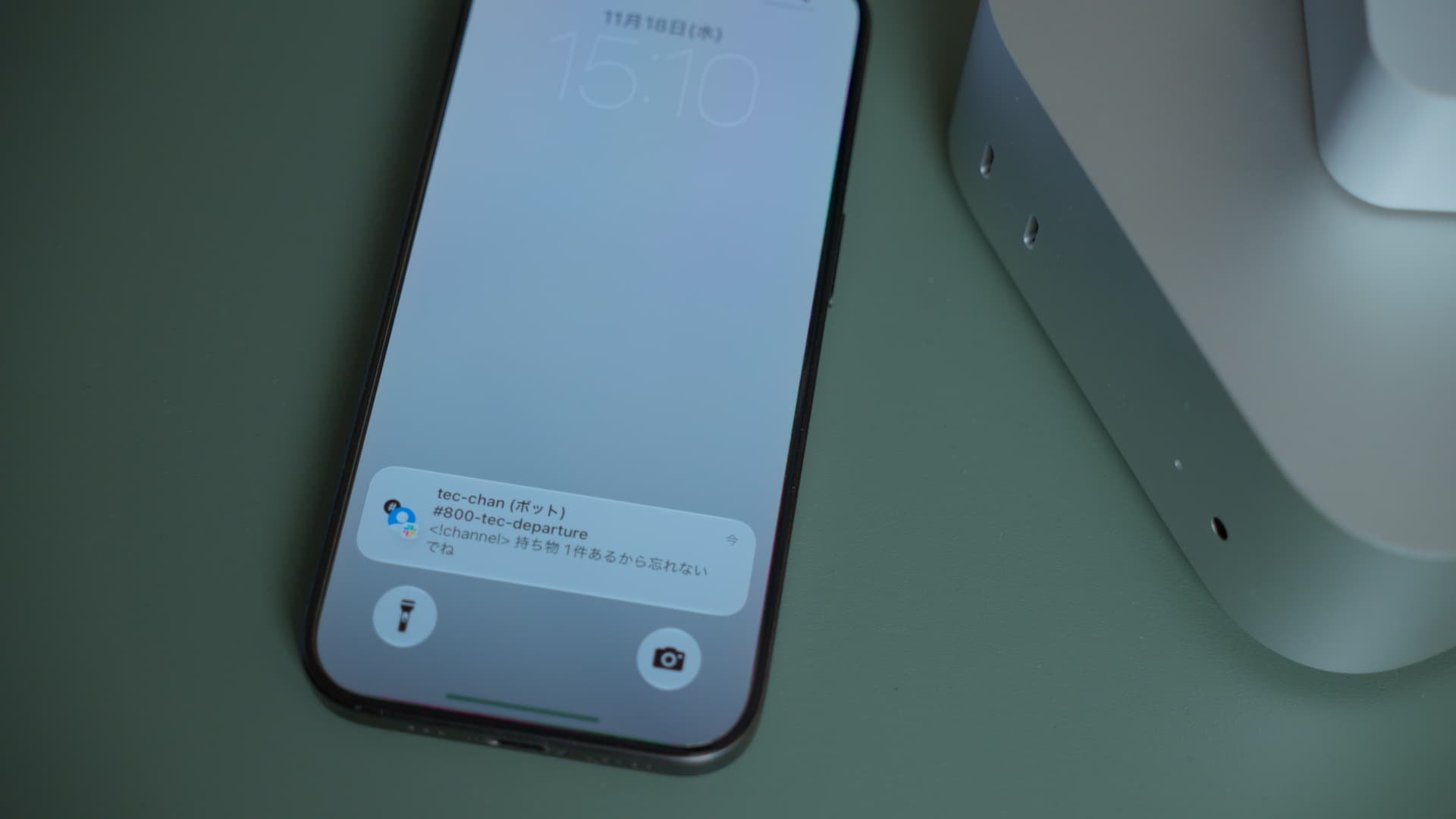
Before I leave home, I take my keys off the hook. By the time I reach the front door, a notification has arrived on my phone. It lists what to bring that day and what to buy on the way home. The other day, that notification is the reason I remembered to take the souvenir I had left in the fridge.
The notification comes from a Mac mini with the M6 chip that runs 24 hours a day at home. Inside this one machine, speech transcription and two local LLMs are always on standby. It listens to my voice, works out what I mean, adds it to Apple’s Reminders, and tells me at the right moment. It does all of that, for the most part, without relying on cloud AI.
Why I bought a Mac mini to run local LLMs 24/7, separate from my Mac Studio M3 Ultra
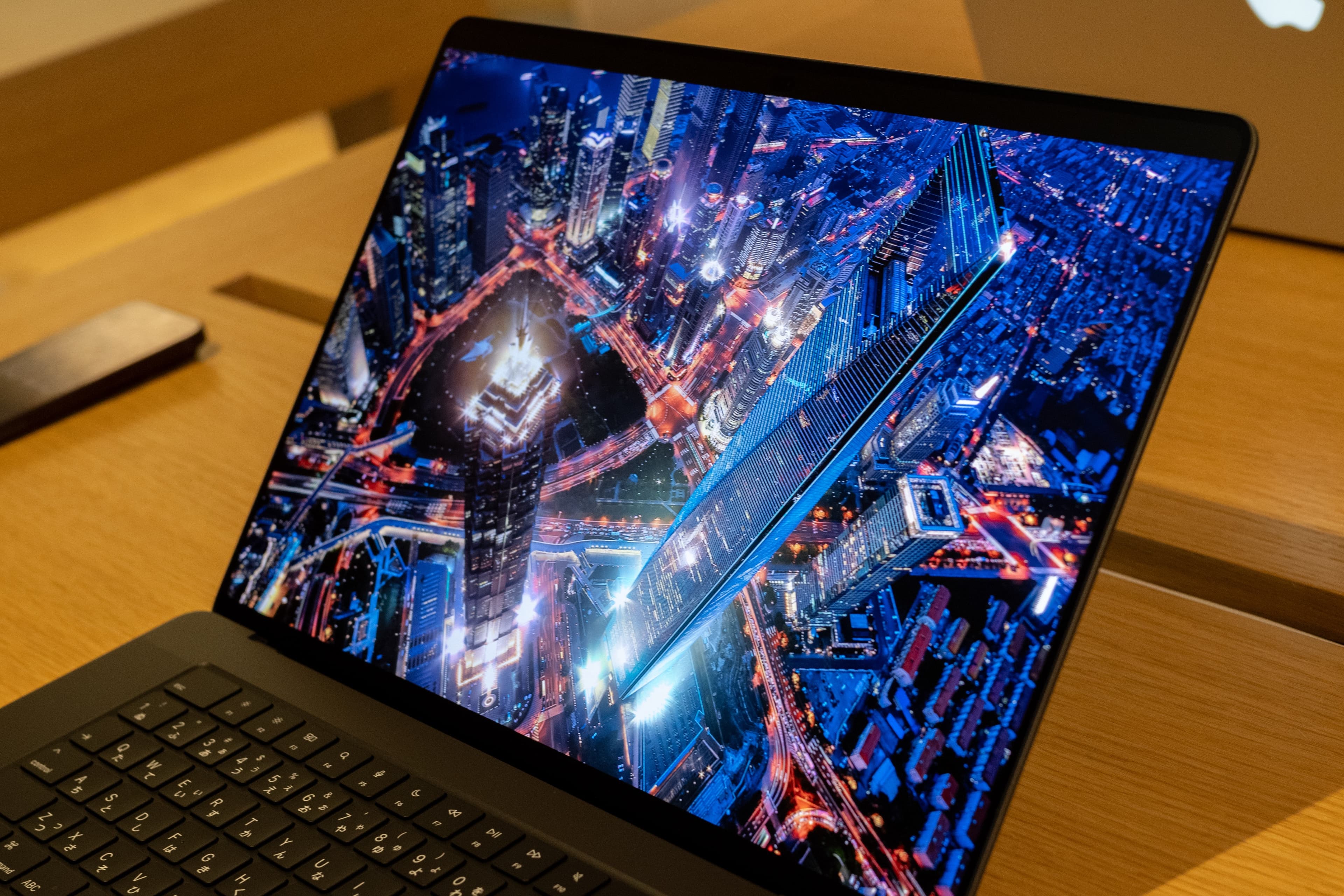
For video editing and photo editing, I use a Mac Studio with the M3 Ultra. I have never been short on performance, and it still handles both my editing and my AI-assisted work.
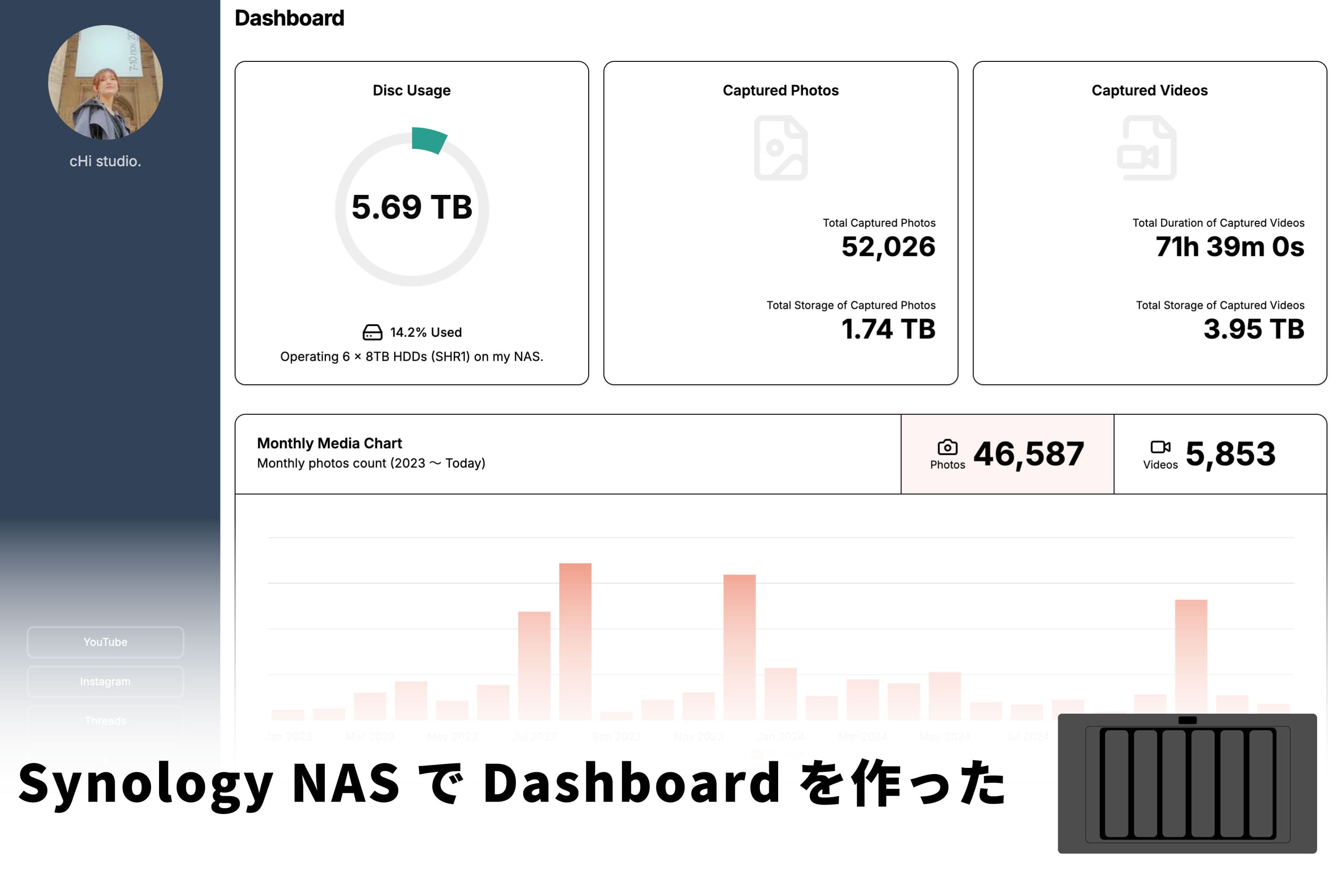
What I wanted the Mac mini to take on was the everyday side of life. With help from AI, I have built several apps just for myself, such as a household budget app and an app for managing my YouTube and blog content. I use them daily, so I want them running all the time. But keeping the Mac Studio on for that, when I want it free for focused work, didn’t feel right.
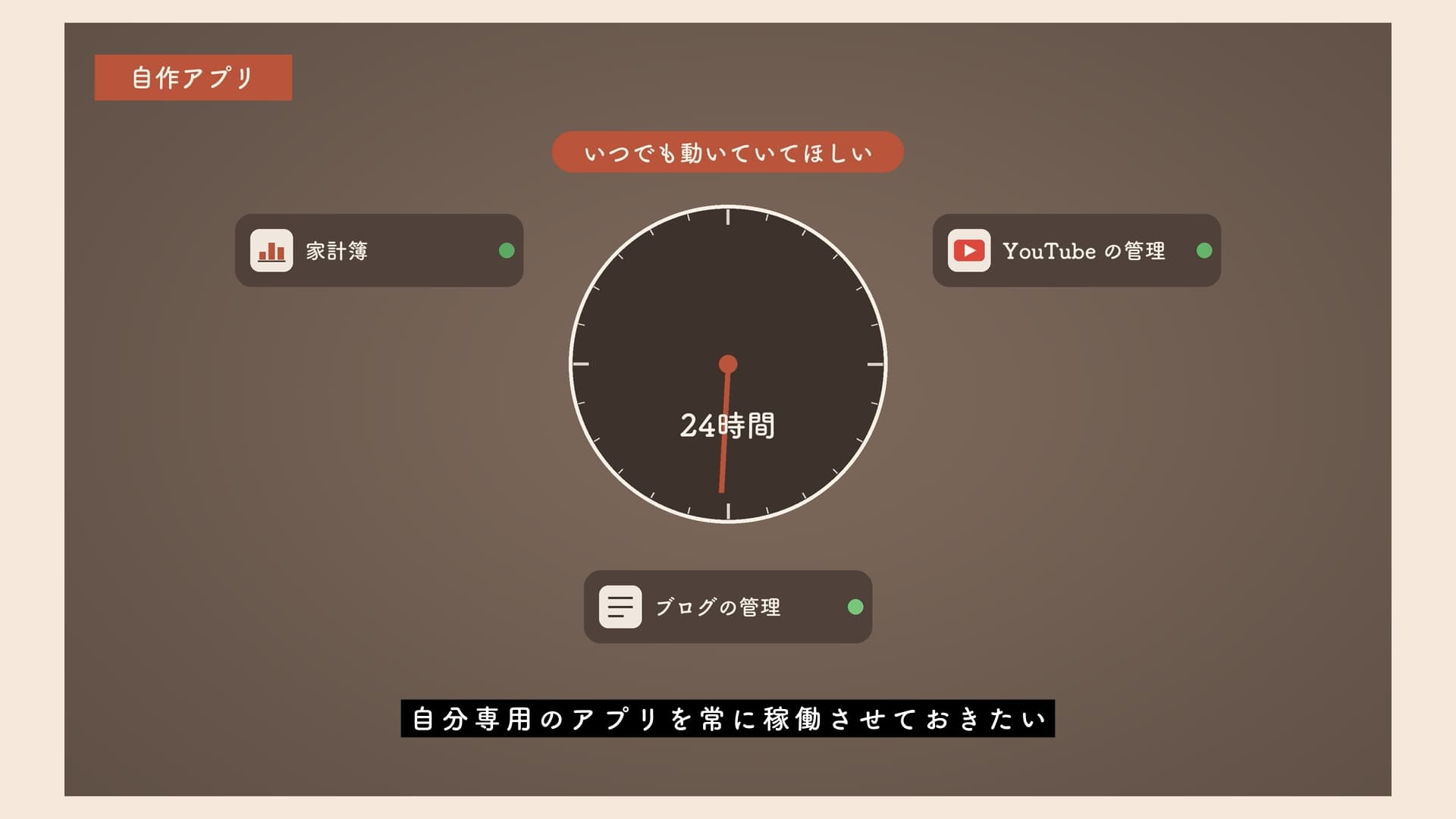
Until now, I ran these homemade apps on my NAS. I want the NAS to concentrate on storing and backing up data, so I moved the apps to the Mac mini.
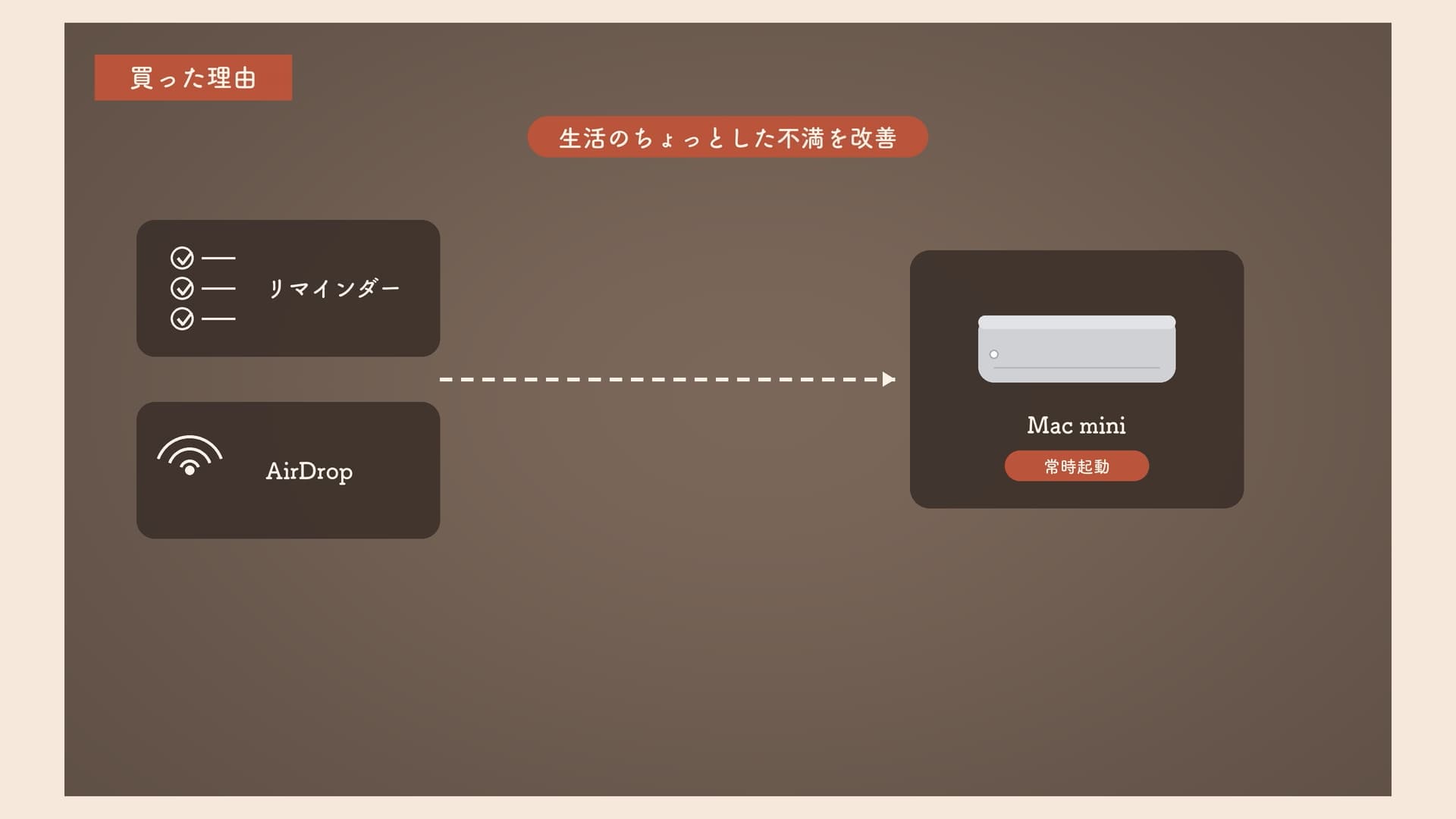
There is a reason I chose a Mac as their new home. If all I needed was something always on, a cheaper small PC would do. I still chose a Mac because my daily life leans on Apple’s services. The two I use most are Reminders and AirDrop. On a Mac, my own apps can connect to both directly. I can place my own system inside the Apple ecosystem, which I couldn’t reach when the apps ran on the NAS. This is where the difference in usability is greatest.
Why I chose the M6, 32GB, 512GB, 10Gb Ethernet configuration at ¥275,800
The Mac mini with the M6 chip went on sale on September 22, 2026. I bought the configuration below, and the price when I bought it was ¥275,800.
| Item | Configuration I chose |
|---|---|
| Chip | Apple M6 (12-core CPU, 12-core GPU) |
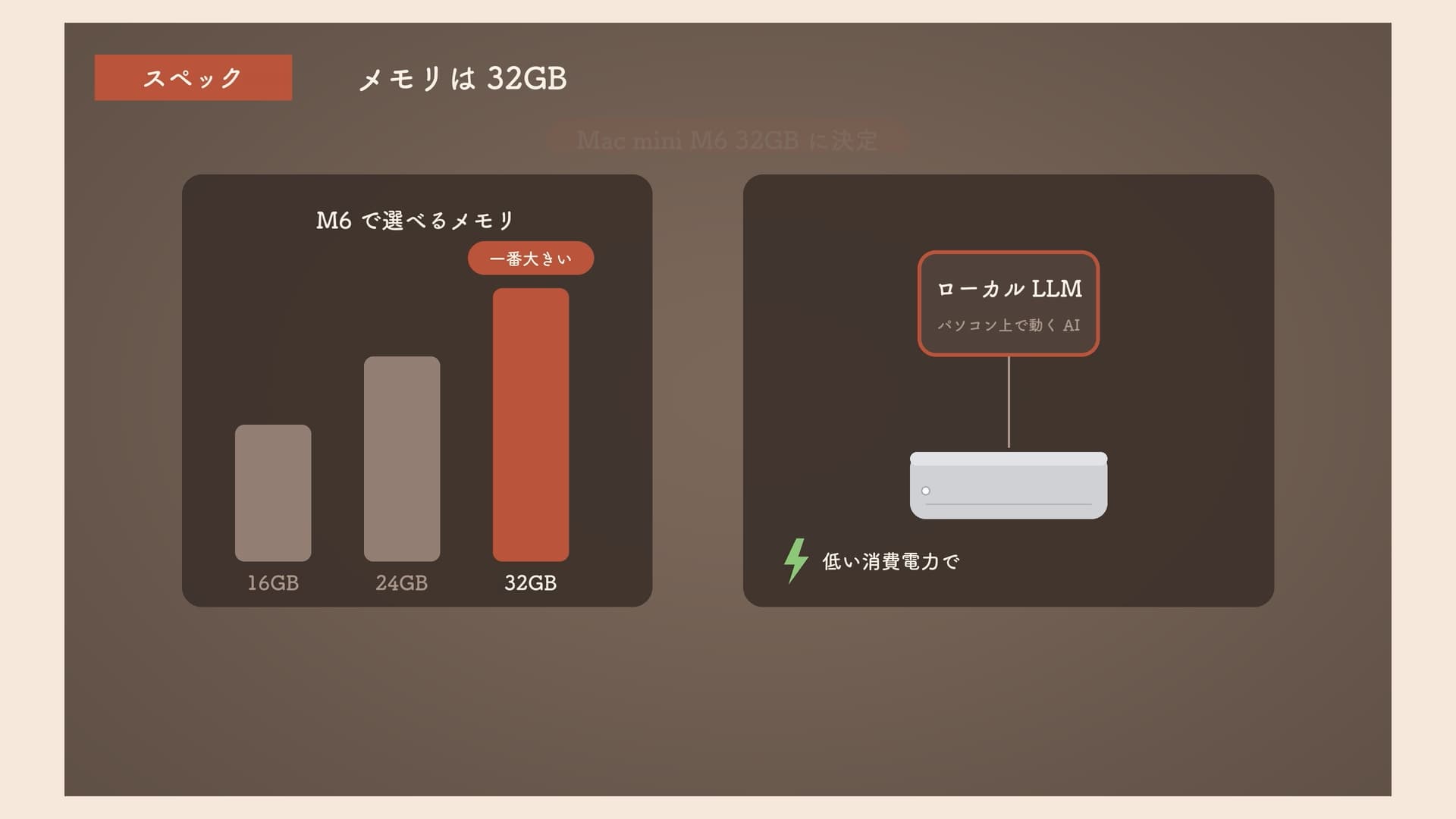
| Memory | 32GB (the maximum available for the M6 Mac mini) |
| SSD | 512GB |
| Ethernet | 10 Gigabit (2.5 Gigabit is standard) |
| Body | About 12.7 cm square, about 5 cm tall, about 0.67 kg |
Memory is what I thought about most. A local LLM runs with the model loaded into memory. For my use, I want a model that reads the intent of what I say, a model that looks things up, and Whisper for transcription all on standby in the same Mac. In the measurements I cover later, Whisper alone used a little over 5GB of memory. Two LLMs come on top of that, so the standard 16GB felt too tight. I went with 32GB, the most you can choose with the M6. A Mac mini with the higher-end M5 Pro is also available, but this is a machine that stays on 24 hours a day, so the M6 with its lower power consumption suits my purpose better.
For the SSD, I had heard that the 256GB model has a slower SSD, so I chose 512GB.
The 10 Gigabit Ethernet is for the NAS. My home network runs on 10GbE, and I connected the Mac mini at the same speed, hoping to eventually use it for organizing photo and video files too.
The body is about 12.7 cm square. Next to the Mac Studio, it is much smaller. Not having to think about where to put it is welcome for a machine that is always running.
What runs inside the Mac mini: two Qwen models on Ollama, and mlx-whisper
Before getting into how it works, here is what is running inside the Mac mini.
| Role | Model | Runs on |
|---|---|---|
| Transcription (turning speech into text) | whisper-large-v3-turbo (mlx-community version) | mlx-whisper |
| Reading intent (deciding what was asked) | qwen3.5:9b | Ollama |
| Lookups (researching and summarizing what a word means) | qwen2.5:14b | Ollama |
| Reading handwritten notes | macOS Vision (text recognition) + qwen3.5:9b | macOS, Ollama |
For transcription, I use Whisper running on MLX, the machine learning framework for Apple silicon. The LLMs run on Ollama, with a separate model for each role. For reading intent from a short phrase, I use the 9b model, prioritizing quick response. For researching a word and writing up the result, I use the slightly larger 14b model.
Processing is, as a rule, completed entirely inside the Mac mini. There is one exception. Requests that the local model couldn’t make sense of are not dropped on the spot; they are kept, and a scheduled job (cron) hands them to Claude to process again. Day to day, things get handled quickly on the local side, and only what slips through is picked up later by cloud AI.
hey-tech-chan: a homemade AI voice assistant that adds reminders by voice
The thing I most wanted to do with the Mac mini is hey-tech-chan. It is something like Siri that I can ask for things by voice. It is not an existing service; I made it myself, name included.
Siri is convenient, and I still use it often. But when you ask by voice, the answer comes back by voice. It is nice to have the weather read out, but there are times when I don’t need a reply. I just want what I asked for to be quietly taken care of. I wanted a voice assistant whose behavior I could decide to suit the purpose, so I made my own.
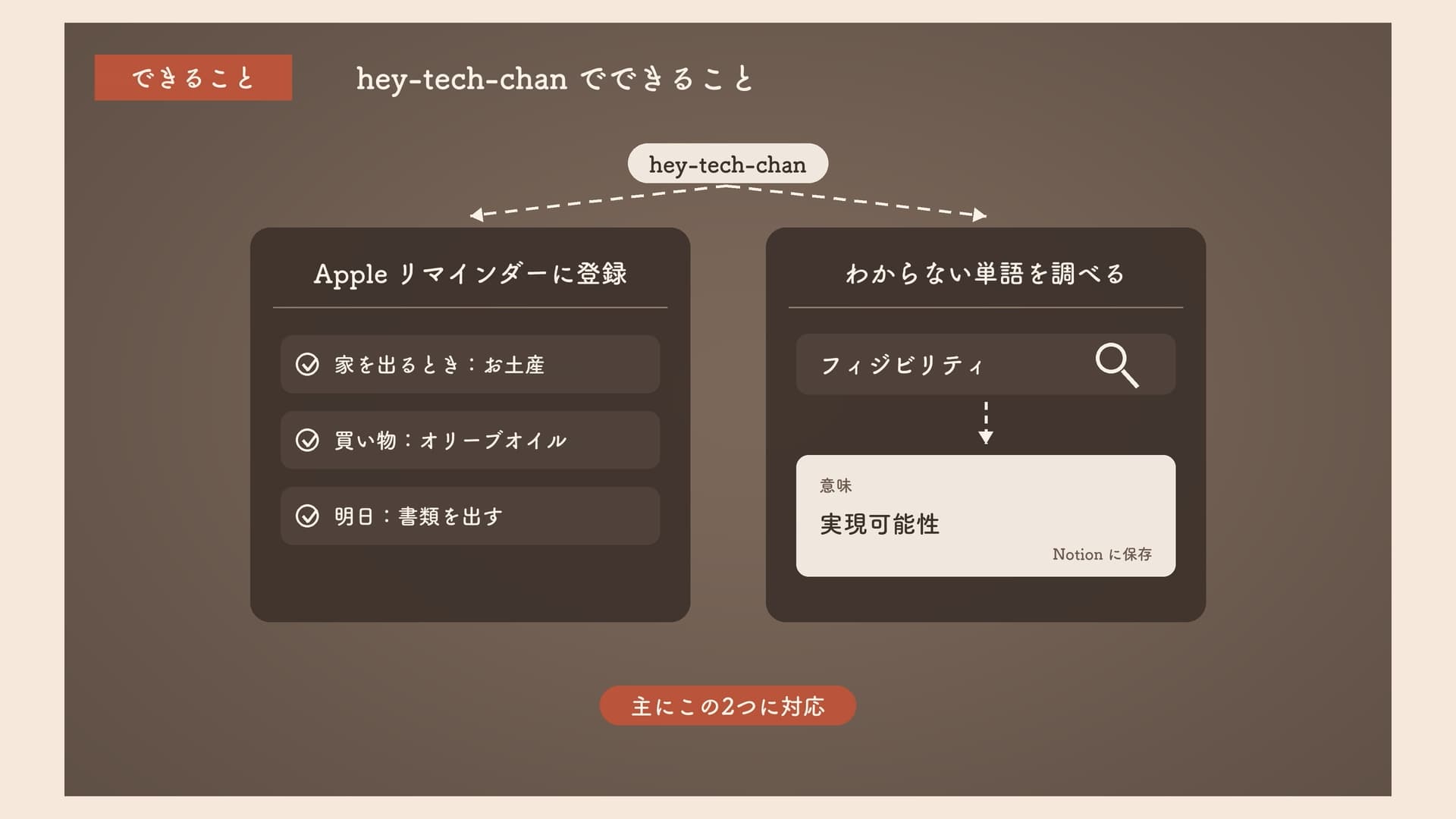
For now, I leave two things to hey-tech-chan: adding to Apple’s Reminders, and looking up words I don’t know.
“When I leave home” and “when I go shopping” go to different lists
I can add reminders in my own words.
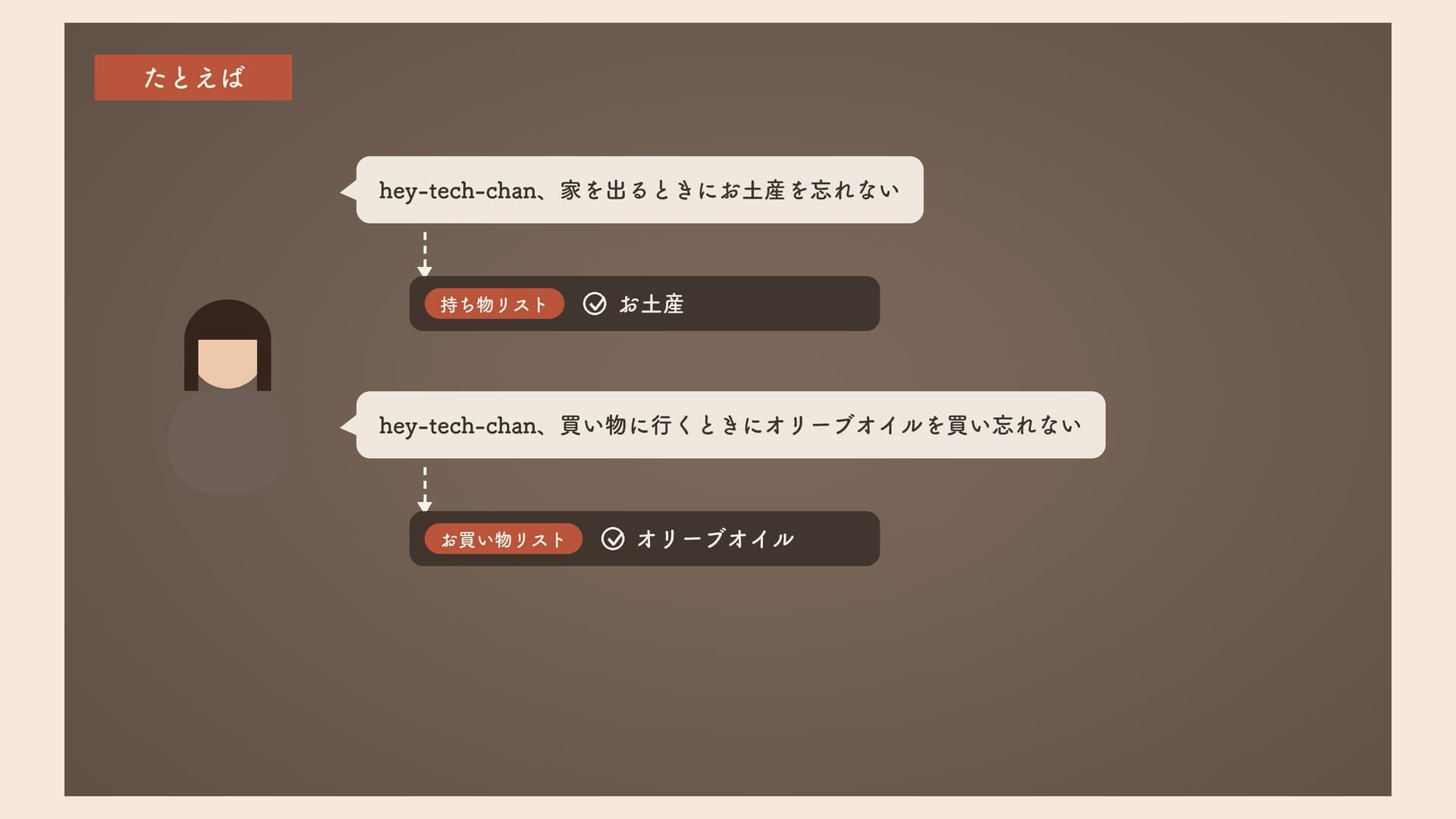
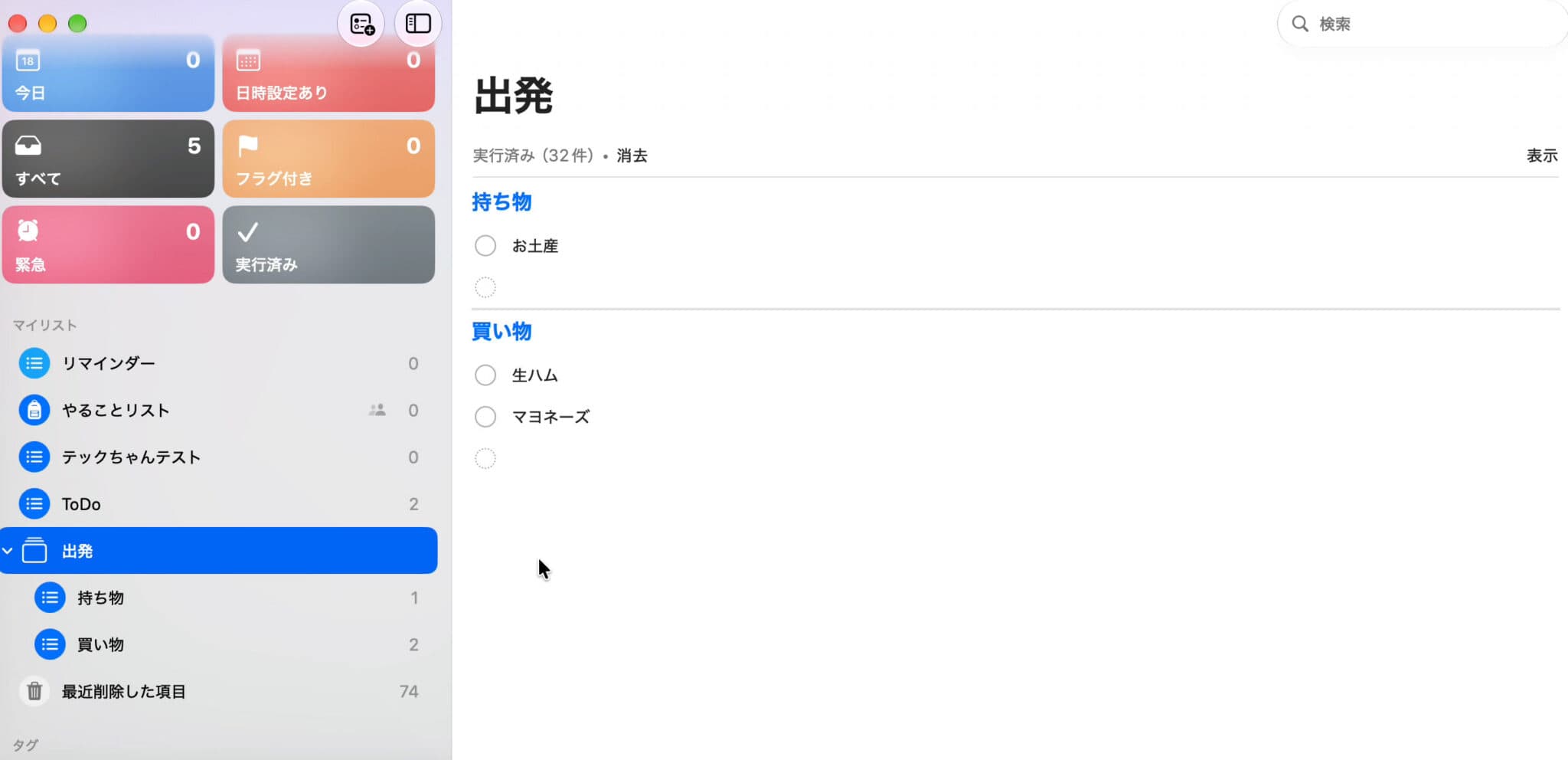
If I say, “hey-tech-chan, don’t let me forget the souvenir when I leave home,” the souvenir goes into my things-to-bring list. If I say, “hey-tech-chan, don’t let me forget olive oil when I go shopping,” olive oil goes into my shopping list. The LLM decides which list from how I phrase it. Not having to memorize set phrases is what sets it apart from rule-based voice control.
Words I don’t know are looked up and saved to a Notion database
The other is looking up words. When an unfamiliar business term or English word came up in a meeting, I often meant to look it up later and then forgot.
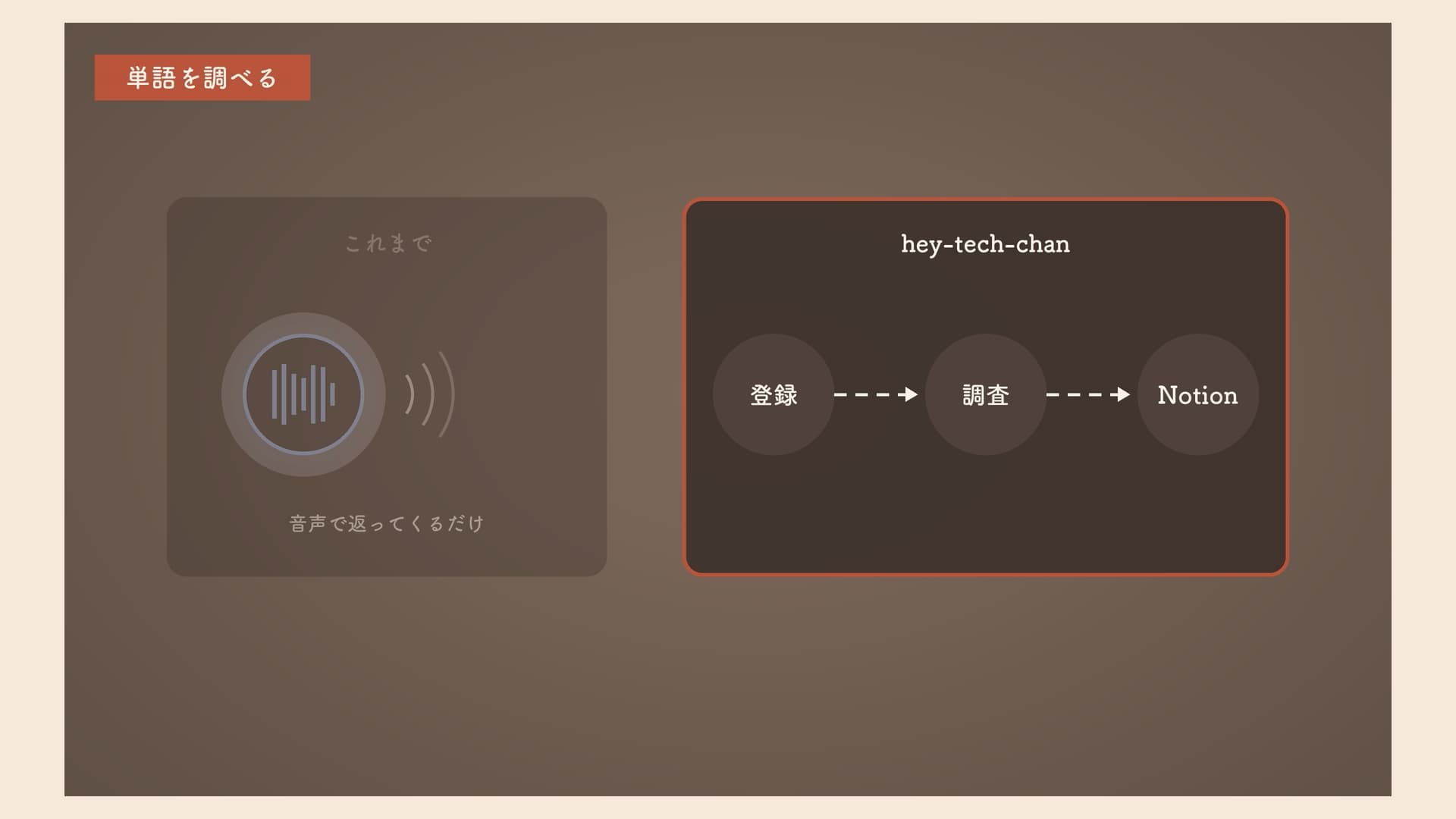
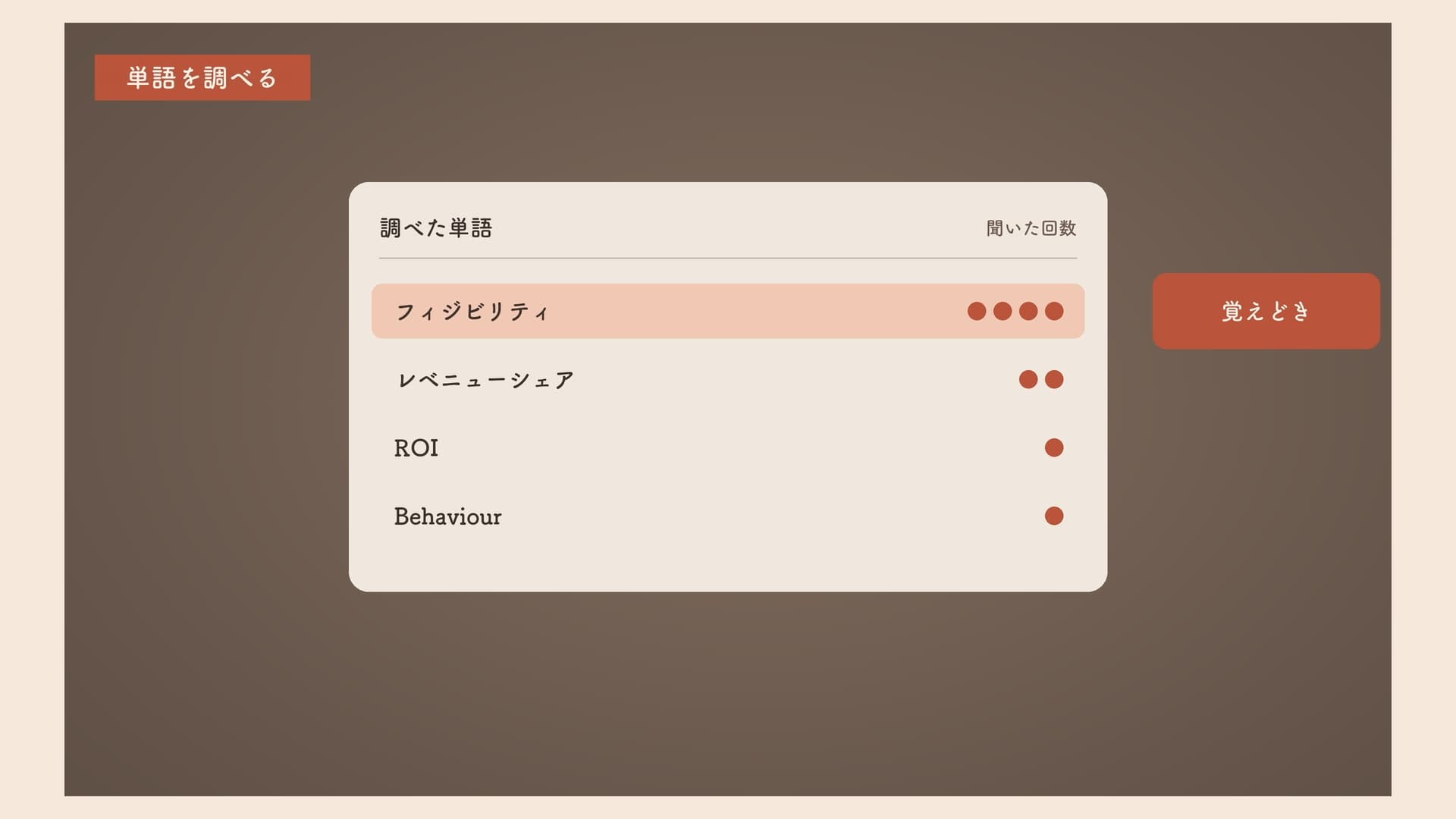
When I say, “hey-tech-chan, what does feasibility mean?”, the lookup model summarizes the meaning and saves it as an entry in a Notion database. Unlike hearing a spoken answer and being done, the entries build up in a form I can read back later. The result also arrives in Slack.
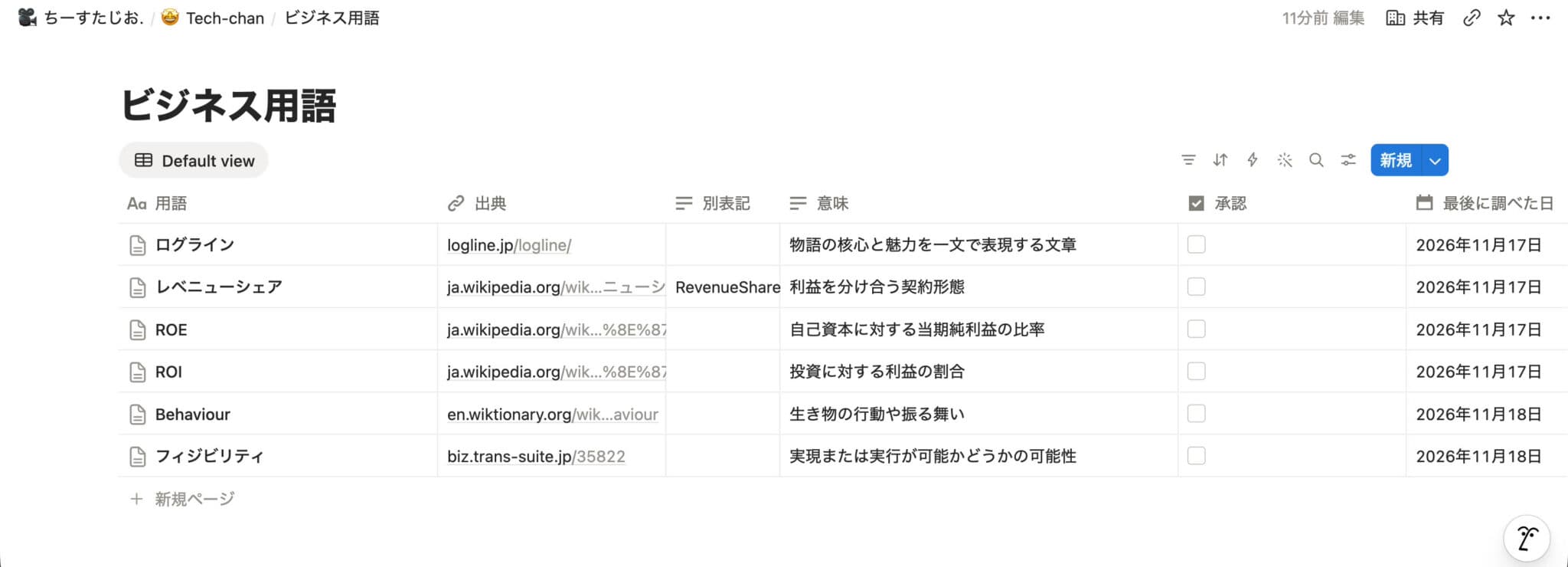
As I keep using it, I can see which words I ask about again and again. I also set it up to tell me when it is about time to learn one. It feels a little like having my own secretary.
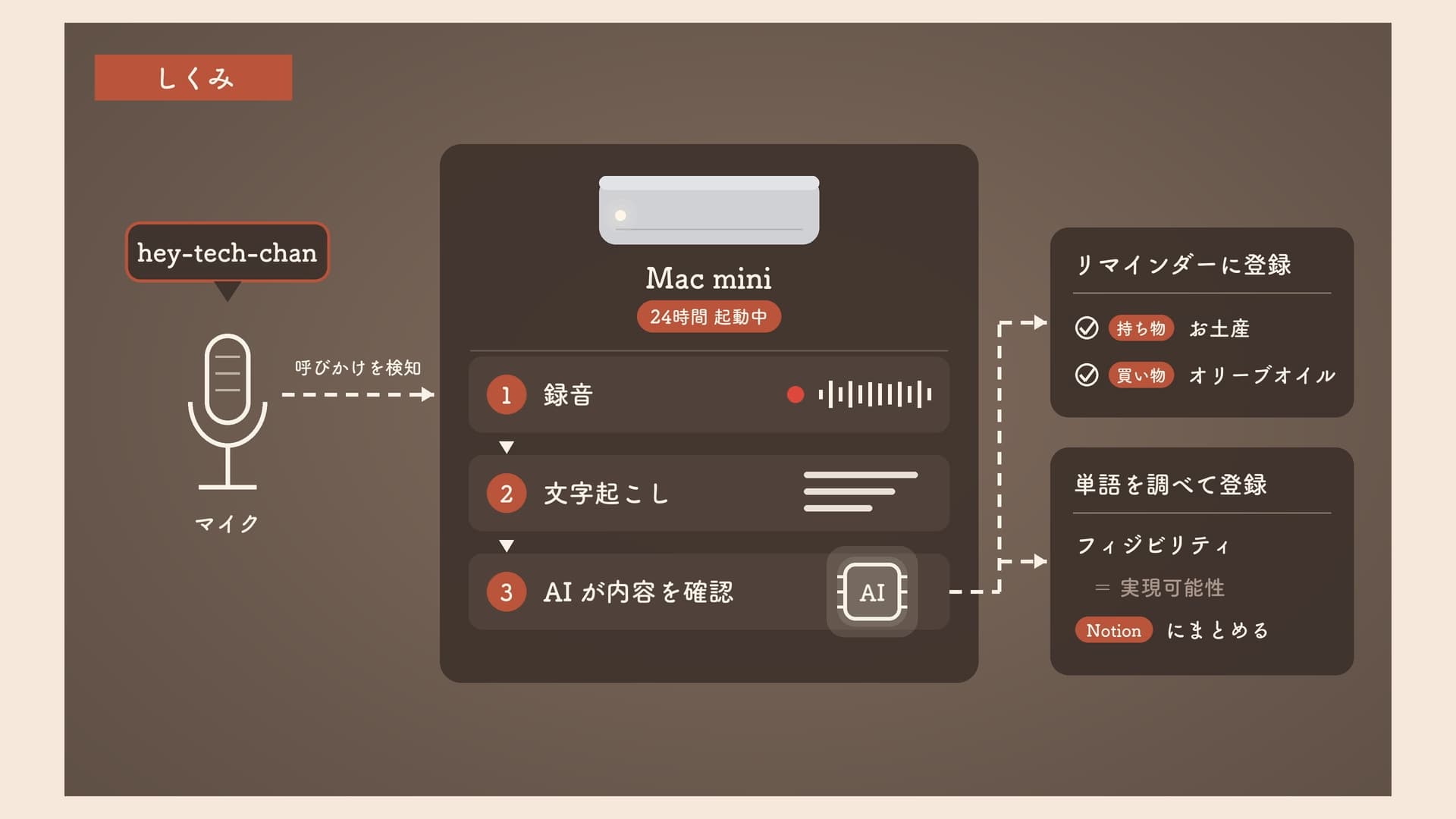
From wake word to registration, it works in five steps
From speaking to it until the item is in Reminders, it goes in the following order.
- The microphone connected to the Mac mini waits for the call “hey-tech-chan” (the wake word)
- When it detects the call, it starts recording
- The recorded voice is transcribed with whisper-large-v3-turbo on mlx-whisper
- qwen3.5:9b on Ollama reads the transcribed text and decides what was asked
- The request is routed to the right process: adding to Reminders, or looking up a word (qwen2.5:14b) and recording it in Notion
hey-tech-chan is now the center of the system in my home. Everything from here on is something I added to give hey-tech-chan more ways in and out.
A forgotten-item notification over Thread that arrives the moment I take my keys
I built the notification from the opening so that the reminders added through hey-tech-chan reach me at just the right time.
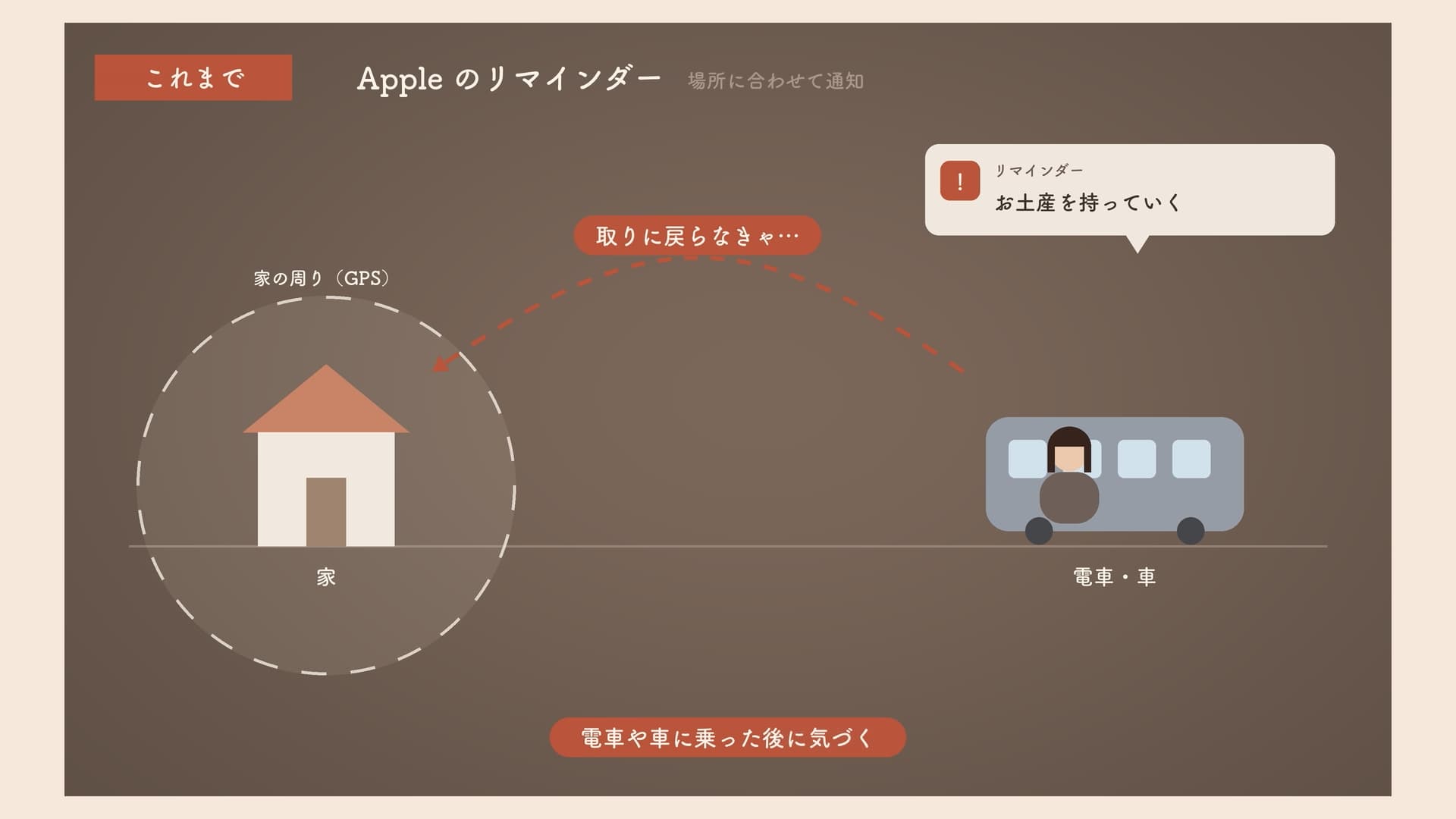
Apple’s Reminders can also notify you based on location. But it uses location to judge that you have left home, so the notification comes after you are away. In my case, I often noticed after getting on the train or into the car, and went back to get things many times. What I wanted was a notification at the very moment I take my keys.
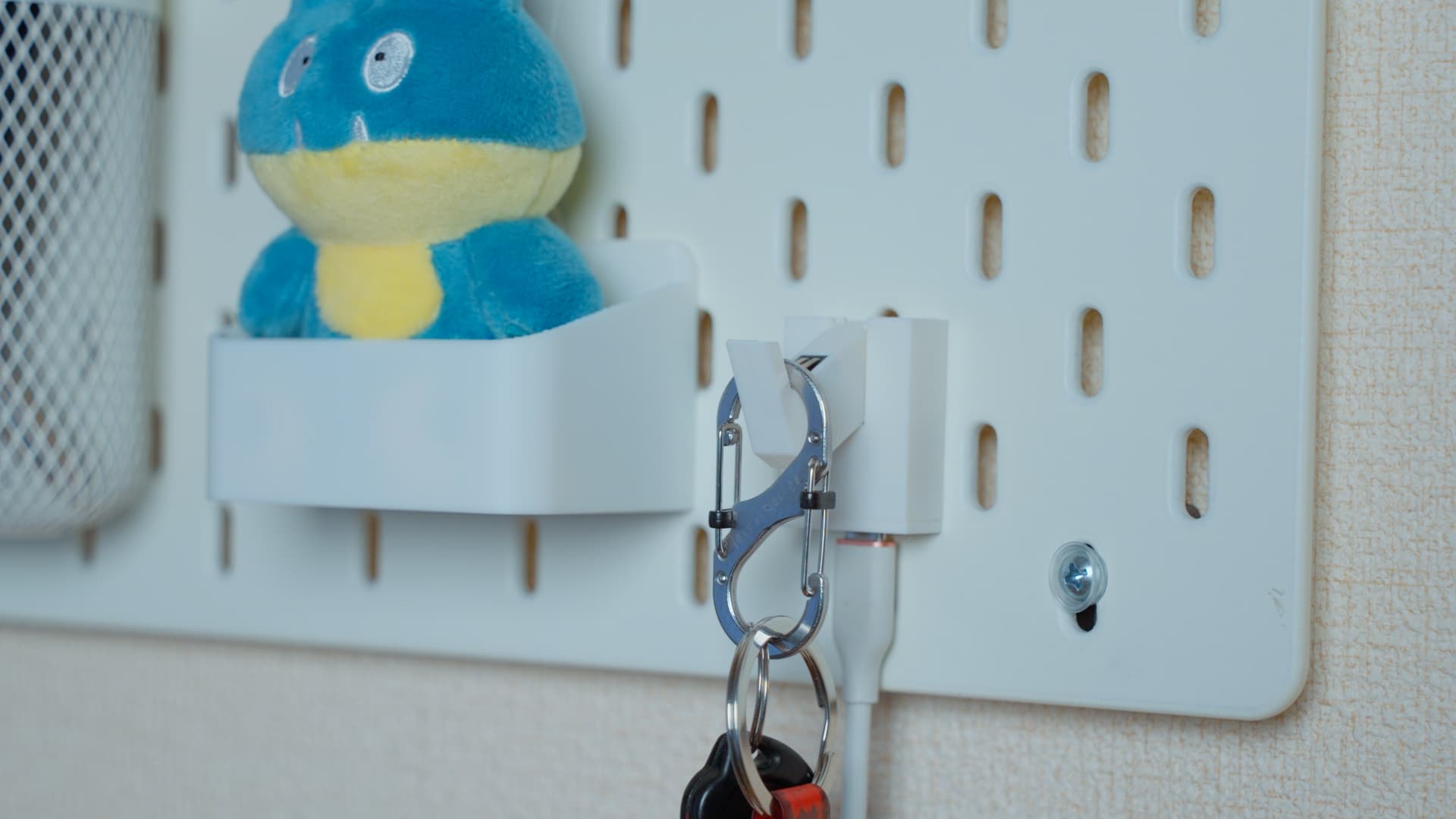
Detecting that the keys are gone with a 3D-printed key hook and an ESP32
I made the hook for my keys with a 3D printer. Inside are a switch and an ESP32, a small microcontroller that supports Thread, and it detects whether the keys are hanging or have been taken by whether the switch is pressed or released.
Thread carries the detected information. Thread is a wireless standard for smart homes; it uses less power than Wi-Fi and suits small sensors and switches. It is a good fit for delivering a very small piece of information, like whether the keys are there, right away.
On the receiving side: an M5Stack CoreS3 SE and an ESP32-H2 module, sending to the Mac mini over USB serial
The information sent from the hook is received by an M5Stack CoreS3 SE placed near the Mac mini. I paired it with an ESP32-H2 module that can handle Thread, and connected it to the Mac mini by USB. The received information is passed to the Mac mini over serial communication. The Mac mini checks what is in Reminders and sends a notification to Slack right away.
The overall flow is as follows.
- When I take the keys, the switch on the hook is released
- The ESP32 in the hook sends that information over Thread
- The M5Stack CoreS3 SE (with the ESP32-H2 module) receives it and passes it to the Mac mini over USB serial
- The Mac mini checks Reminders and sends a notification to Slack
I am also considering connecting the receiving side over Wi-Fi. I use USB for now because it provides power along with the communication. It sits next to the Mac mini, so needing only a single cable is convenient.
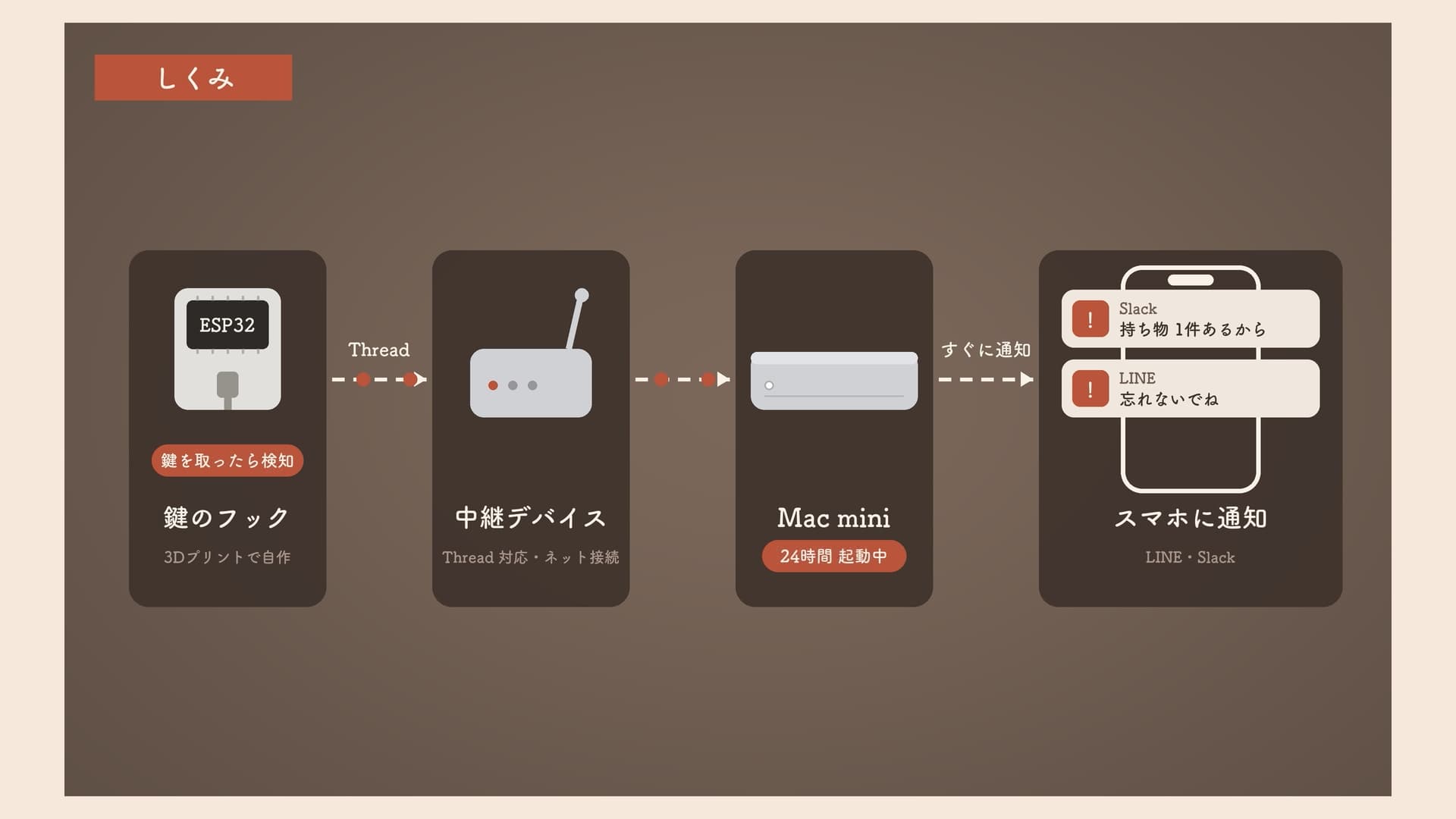
By the time I get from the keys to the front door, the notification has already arrived. That is early enough to remember things I only take out on that particular day, like an umbrella or a souvenir.
Why I didn’t use the Thread built into the M6 Mac mini this time
The M6 Mac mini has newly added Thread capability. At first, I planned to use it as is. But when I looked into it, it didn’t seem to be available in a form that individuals can easily use from things they build themselves, so I passed on it this time. Once I can use the built-in Thread, there will be one less device to set out.
It could also turn on the lights when I put the keys back
This mechanism works with things other than keys. As long as I can tell that a switch was pressed or released, it can be applied to anything. For example, when I come home and return the keys to their place, the room lights turn on. I am thinking about uses like that too.
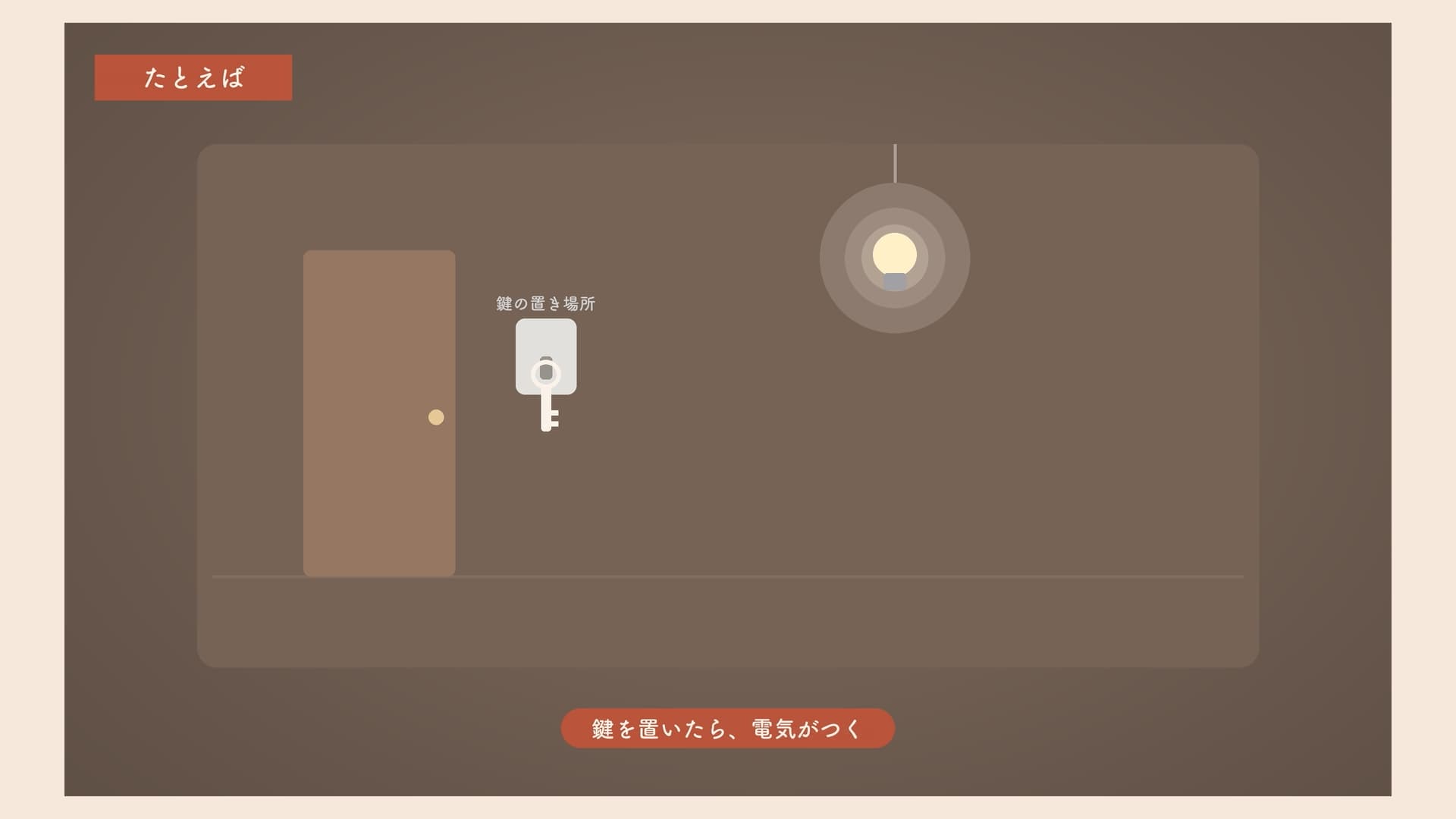
The current hook is powered over USB. With more work, it should fit into a small standalone hook and use much less power, so that is homework for later.
StickS3 units in the kitchen and bedroom let me ask from anywhere in the house
hey-tech-chan had one weakness. It only worked in the room where the Mac mini is. The kitchen is where I most want to use the shopping list, and my voice doesn’t reach from there.
So I made small microphones to pick up my voice. I use the StickS3, a small development kit from M5Stack. The body is about 48 × 24 × 15 mm and about 20 g, with a microphone, speaker, and Wi-Fi inside, and you can program how it behaves. I put one in the kitchen and one in the bedroom.
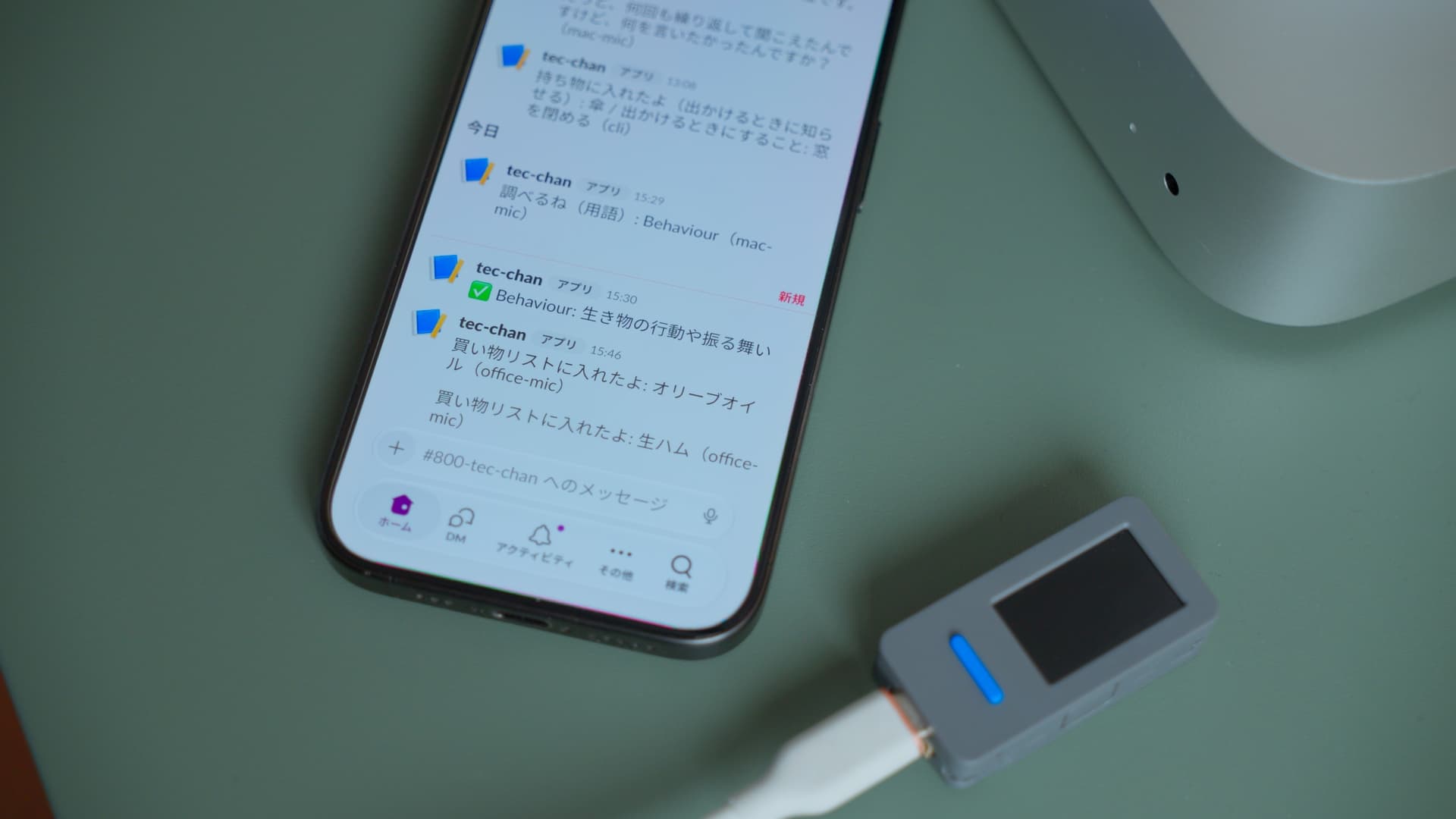
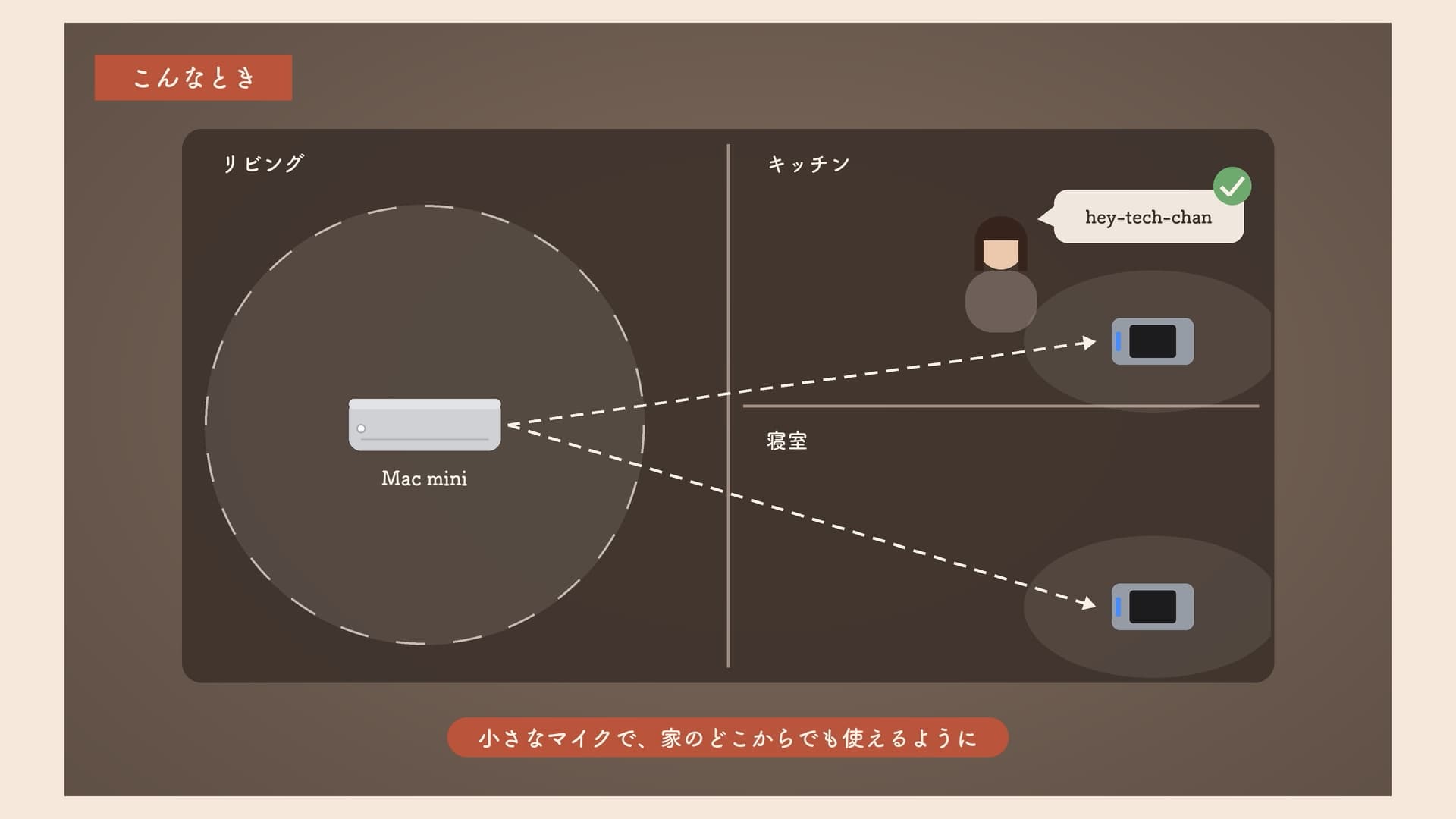
When I call it, the StickS3 wakes up, records a few seconds of voice, and sends it to the Mac mini. The Mac mini transcribes it and passes it to hey-tech-chan. From there, the flow is the same as when I speak to the Mac mini’s microphone. The StickS3 only picks up the voice and sends it; the heavy work of transcription and the LLMs is gathered on the Mac mini. The devices in each room stay small, and the brain is in one place. It is a setup made possible by having one Mac that is always on.
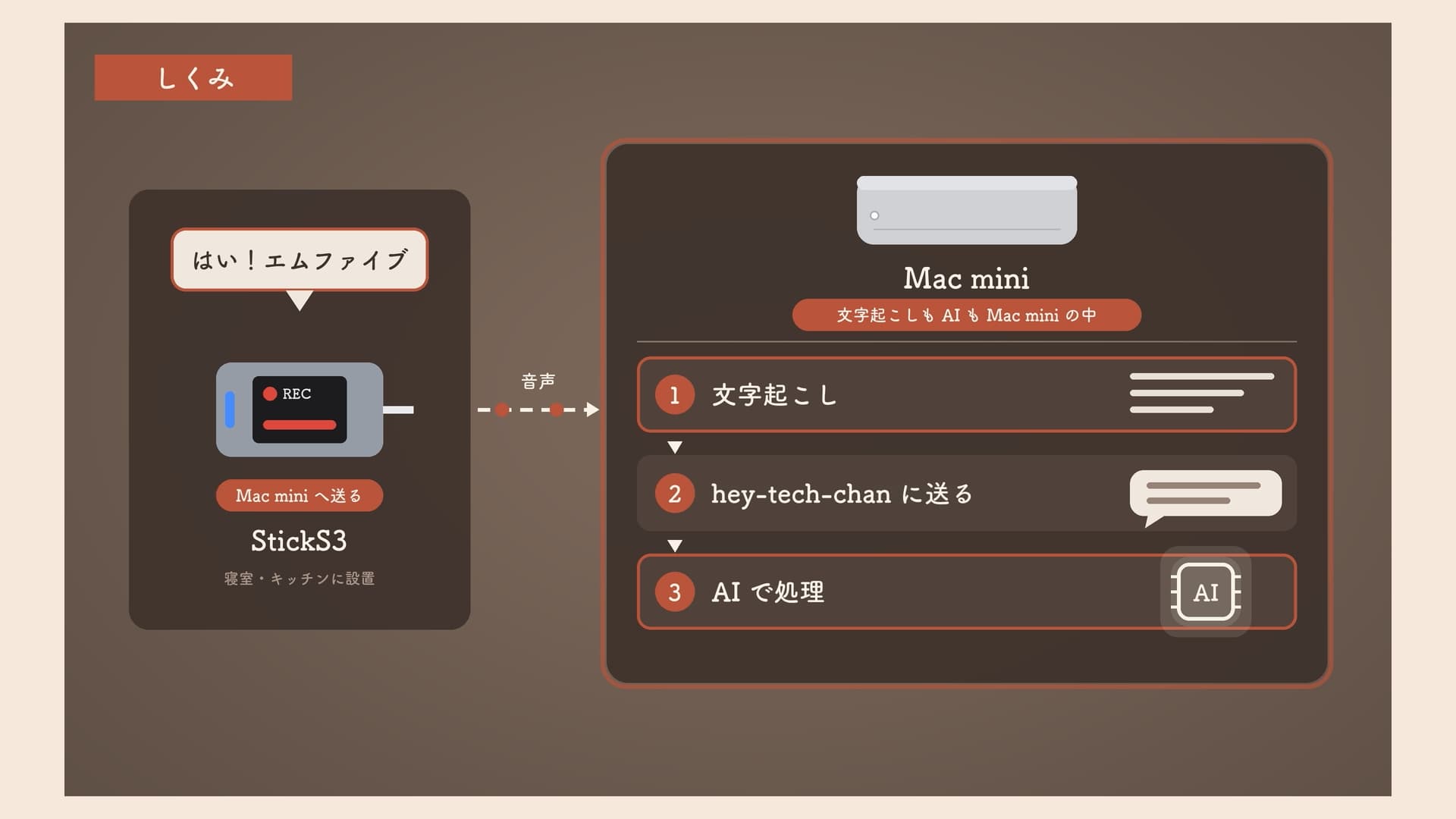
To be honest, this part is still being tuned. I haven’t been able to make the wake word “hey-tech-chan” yet, so I call it with “Hai, M5.” Both units are powered over USB, so the cables are visible. I plan to design the screen display and 3D-print cases so they look like something I want to keep out.
Turning a handwritten meal plan scanned with the ScanSnap iX1500 into a shopping list
I also ask the Mac mini to do some plainer work. It receives what the scanner sends.
My scanner is the ScanSnap iX1500. It is a slightly older model, so it lacks a few features that newer models have. The Mac mini fills that gap. The always-on Mac mini receives the scanned data and backs it up to the NAS.
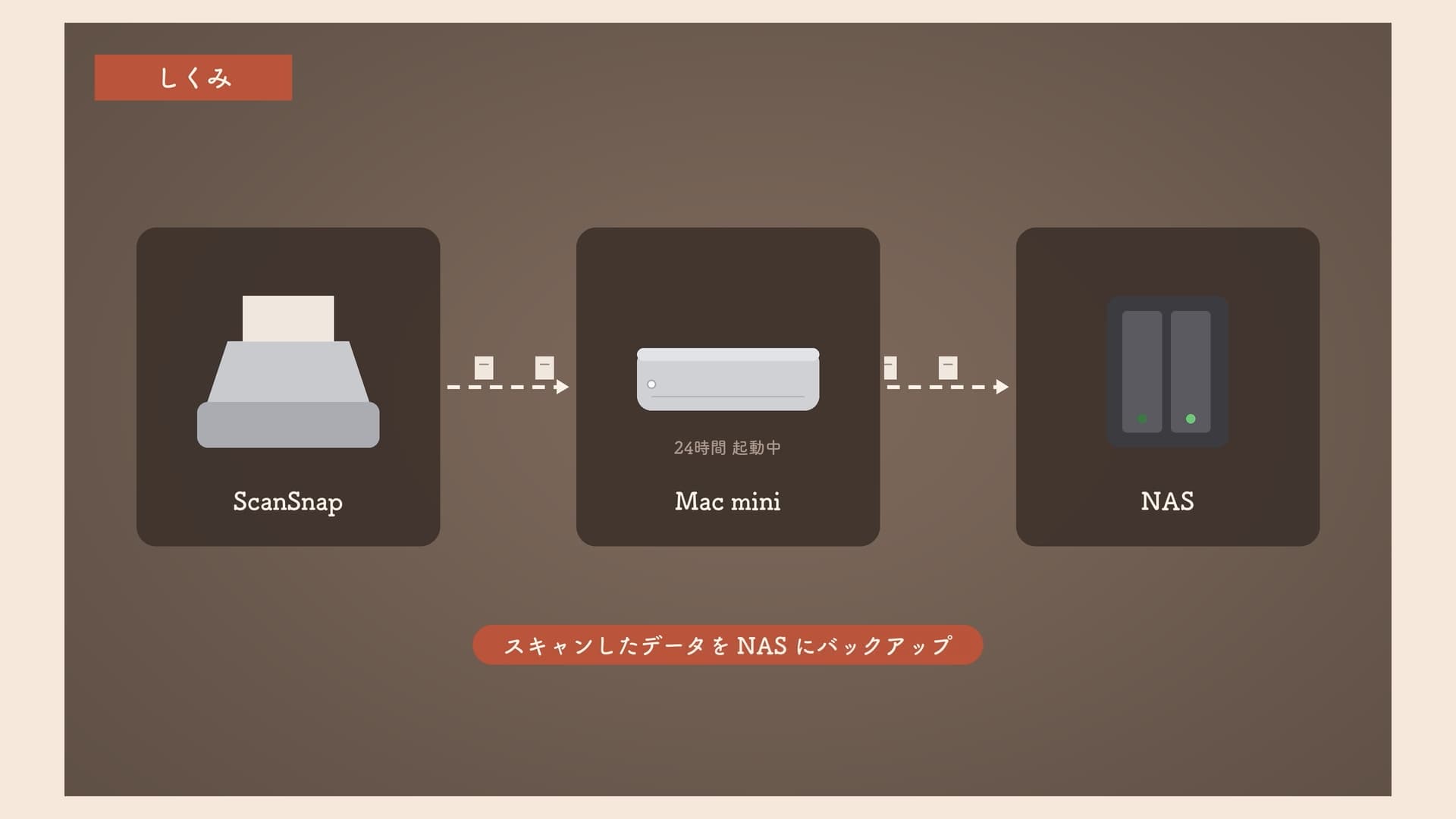
That alone would be dull, so I connected it to hey-tech-chan too.
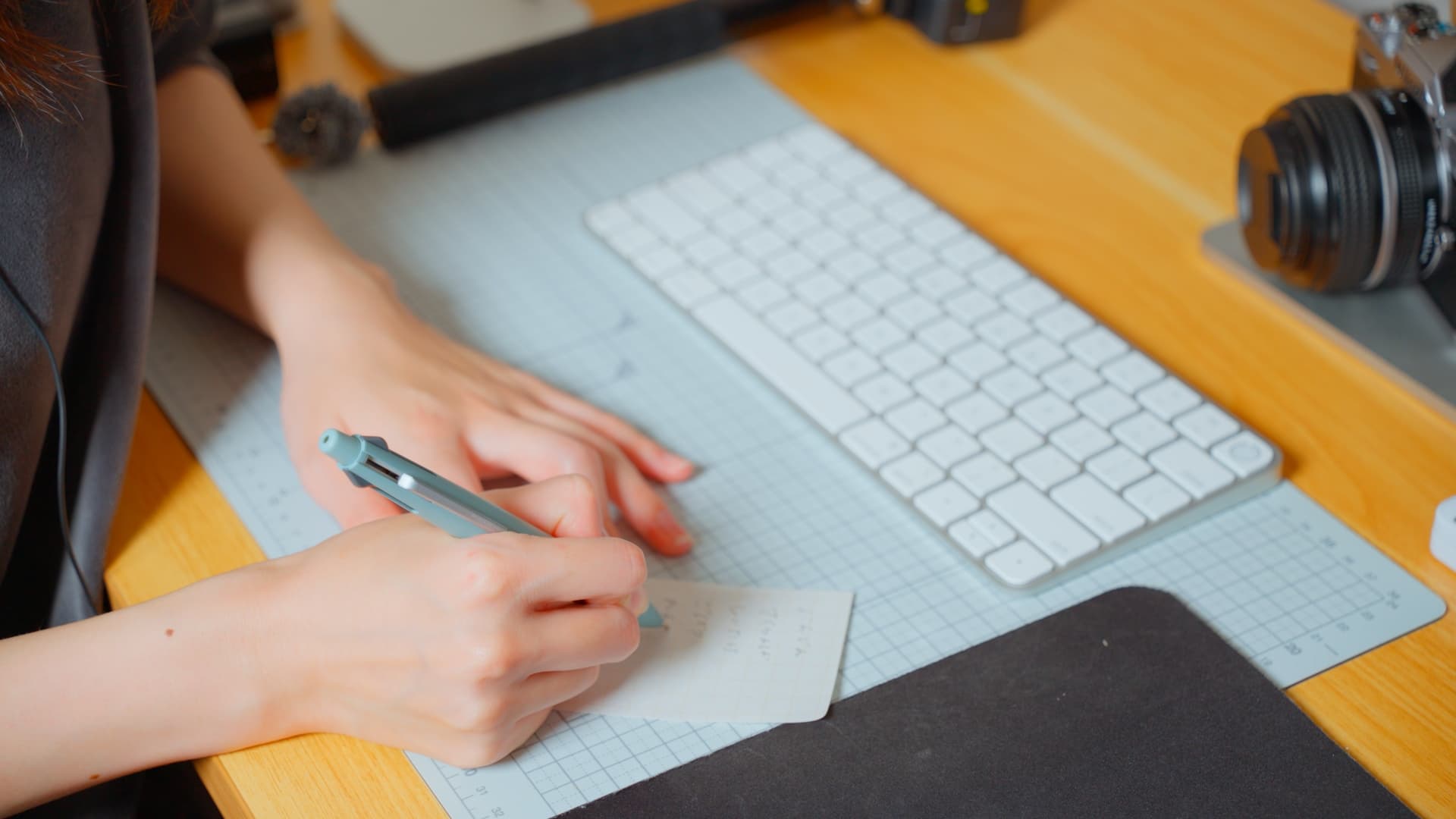
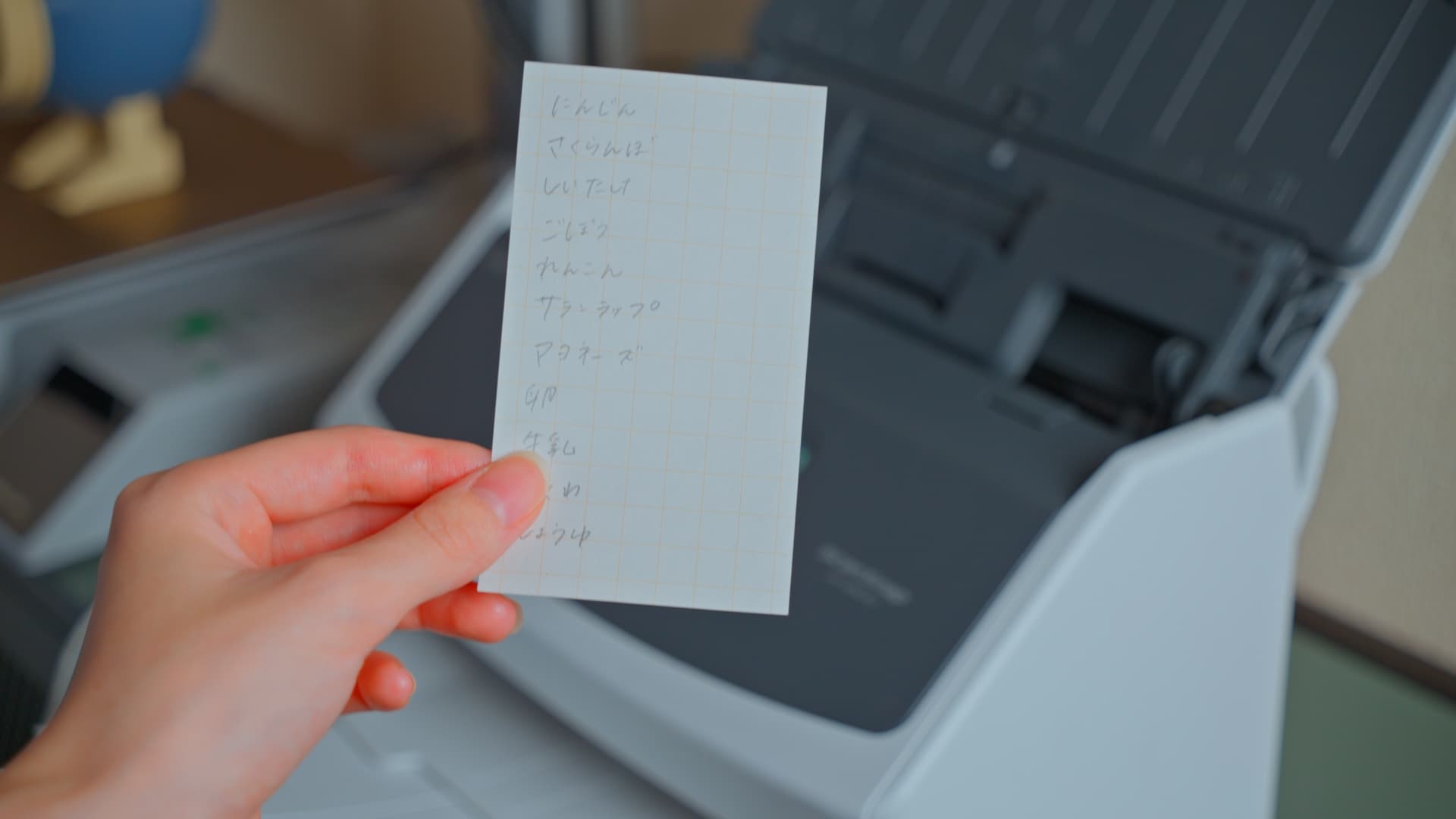
I write out my meal plans for a few days on paper. Until now, I typed them into my shopping list on the iPhone while looking at that paper. It always felt like a chore.
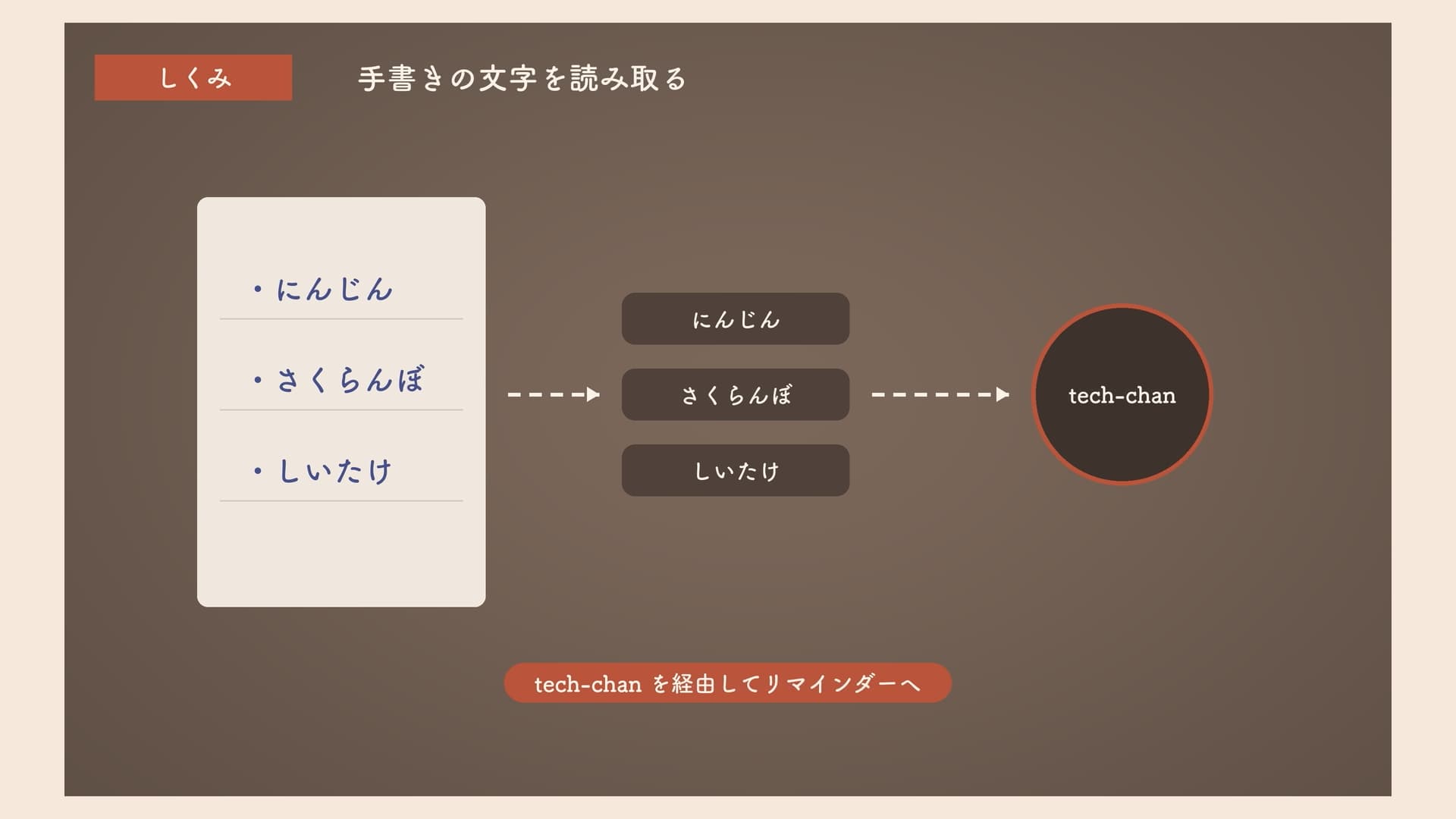
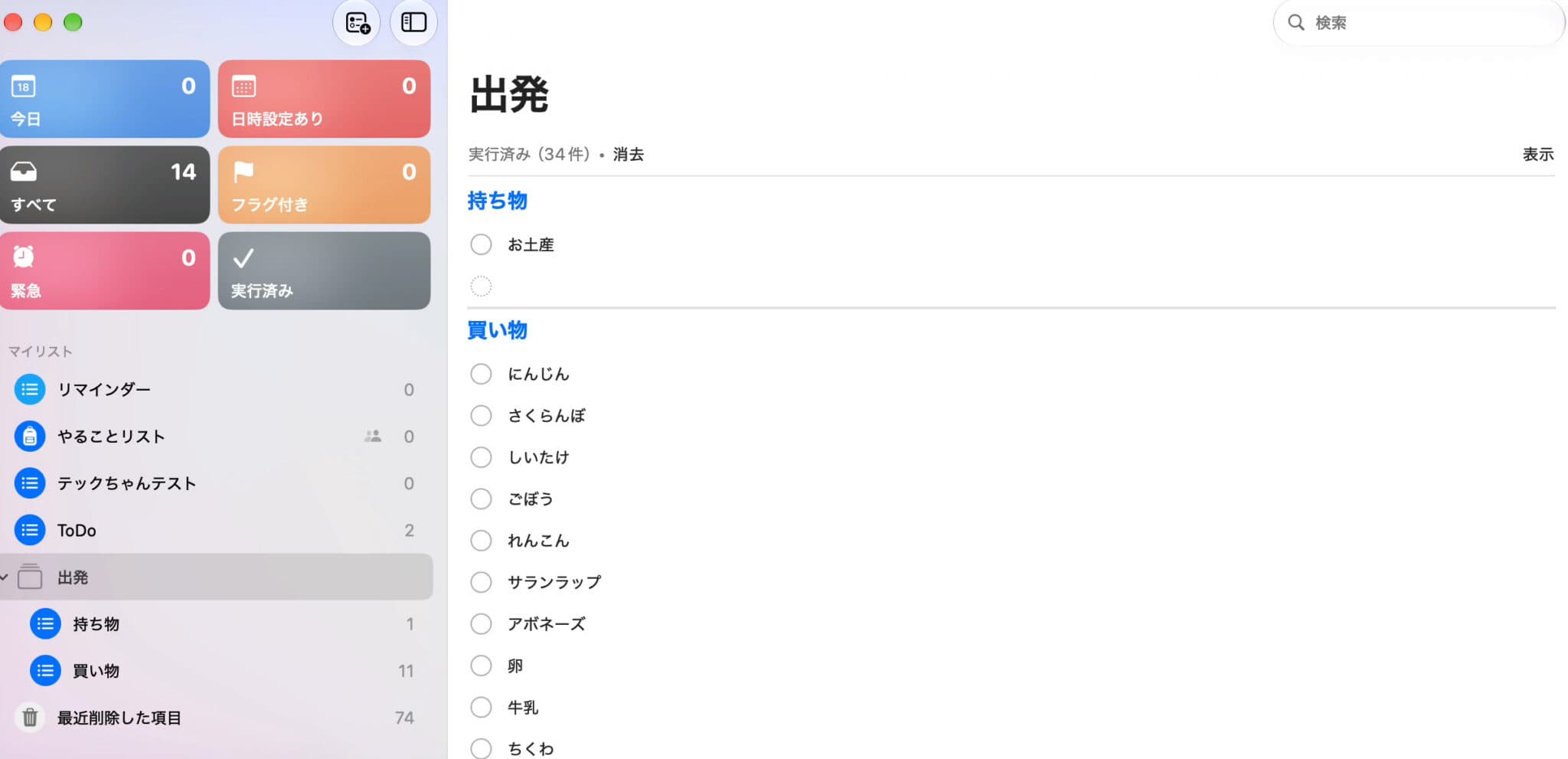
Now I just feed that paper through the ScanSnap. Inside the Mac mini, macOS Vision text recognition first does a rough read of the handwriting, and then qwen3.5:9b, which can also read images, picks out the items. The items go through hey-tech-chan into the shopping list in Apple’s Reminders. The handwriting recognition was more accurate than I had imagined. Only the entry point changed from voice to paper; the processing after that is shared with voice.

Receipt sorting and meeting transcription also run on the Mac mini
The tools I moved over from the NAS also run on the Mac mini.
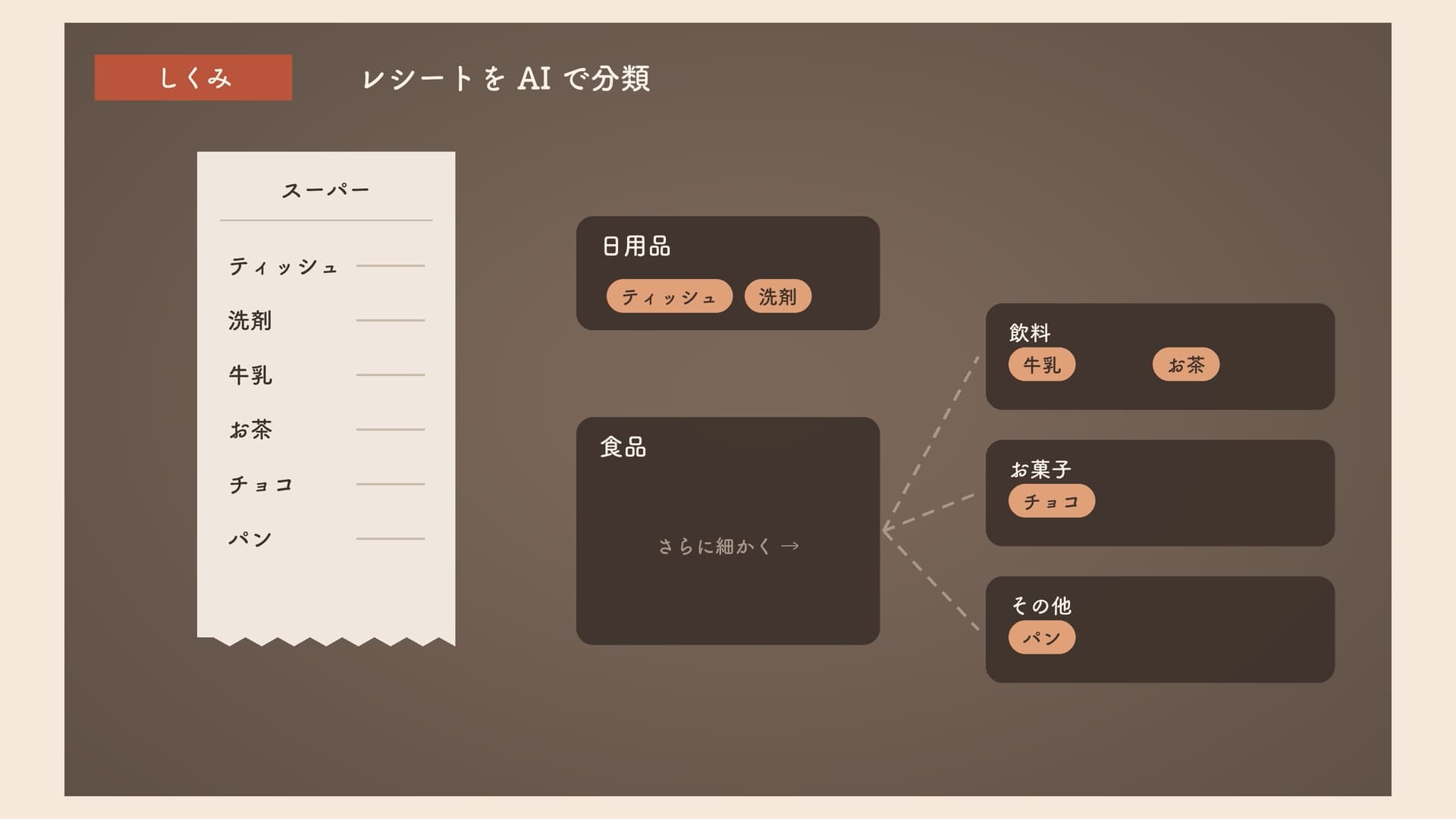
One is the household budget. I connected the scanner to my homemade budget app. When I feed in a receipt from a big supermarket where I bought household goods and food together, AI reads the items line by line and sorts them into household goods or food, and further into drinks or snacks. I was a little moved by this. I can see what I spend and how much, and I hardly have to enter anything myself.
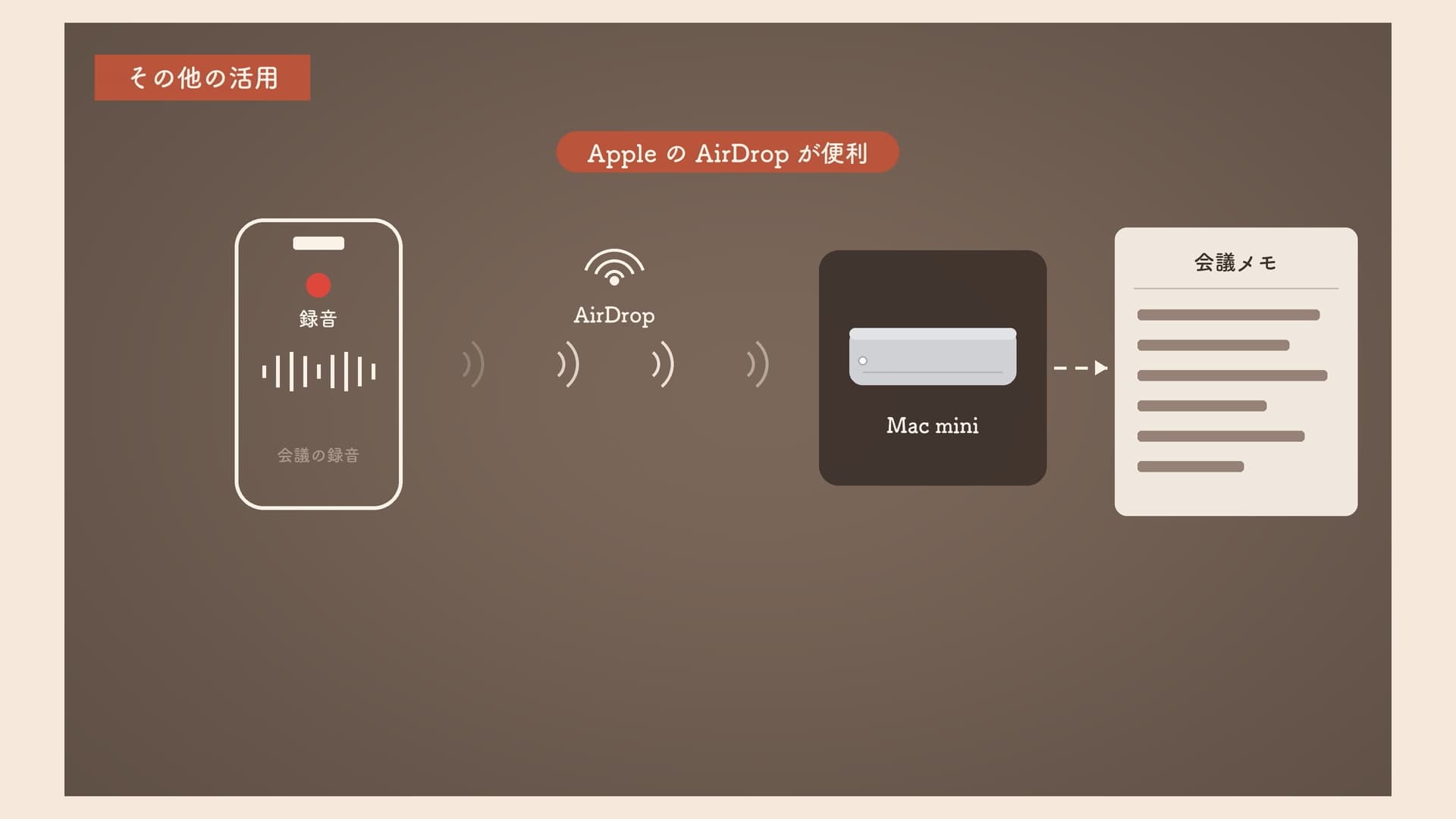
The other is meeting transcription. When I send recorded audio to the Mac mini with AirDrop, the transcript is produced. That I only have to send it from the iPhone is thanks to how well AirDrop is made. It is an entry point I couldn’t use when things ran on the NAS, and it is where I most feel the benefit of moving to a Mac.
Whisper large-v3-turbo transcription speed compared on the M6, M3 Ultra, M2 Max, and M4 Pro
Since I rely on it for transcription, I wanted to know how fast it is. Using measurement software I wrote, I tested the four Macs I have under the same conditions.
Test conditions
| Item | Details |
|---|---|
| Audio | A 52.8-minute meeting in Japanese (mp3) |
| Model | mlx-community/whisper-large-v3-turbo (32 encoder layers, 4 decoder layers) |
| Software | mlx-whisper 0.4.3 / mlx 0.32.4 (same versions pinned on all four) |
| Settings | Language set to Japanese, temperature 0.0 (no retries), no carry-over of previous context. The same settings hey-tech-chan uses |
| Processing unit | Processed in order in 30-second chunks (115–116 chunks) |
| Runs | Measured three times on each Mac; averages shown |
The model was downloaded and loaded beforehand, and run once on one second of silence before measuring. The 2–3 seconds needed to convert from mp3 are not included. All four were connected to their power adapters, with Low Power Mode off and other GPU-using software (such as Ollama models) stopped.
What I couldn’t match was the macOS version. The M6 and M2 Max were on 27.2.1, the M3 Ultra on 26.2, and the M4 Pro on 15.8.1. Please take that into account.
Result: the M6 transcribes 52.8 minutes of audio in about one minute
Time taken to transcribe (total)
- Mac Studio M3 Ultra41.6sec
- Mac mini M661.0sec
- MacBook Pro M2 Max61.5sec
- M4 Pro78.7sec
52.8 min of Japanese audio / whisper-large-v3-turbo (mlx-whisper 0.4.3) / average of 3 runs each / measured November 18, 2026
| Mac | GPU | Total | Real-time factor | Encoder | Rest (decoder, etc.) | Per token | Peak memory |
|---|---|---|---|---|---|---|---|
| Mac Studio M3 Ultra | 60-core | 41.6 s | 76.2× | 19.3 s | 22.3 s | 2.0ms | 5.68GB |
| Mac mini M6 | 12-core (with Neural Accelerator) | 61.0 s | 52.0× | 27.2 s | 33.8 s | 3.0ms | 5.20GB |
| MacBook Pro M2 Max | 38-core | 61.5 s | 51.5× | 33.7 s | 27.8 s | 2.5ms | 5.43GB |
| M4 Pro | 16-core | 78.7 s | 40.3× | 50.8 s | 27.9 s | 2.5ms | 5.37GB |
The M6 Mac mini transcribed 52.8 minutes of audio in 61.0 seconds. That is about 52 times faster than real time. A one-hour meeting would finish in a little over a minute.
Looking only at the total, the M6 is nearly the same as the M2 Max: 61.0 seconds and 61.5 seconds. Their GPU core counts are 12 and 38, more than a threefold gap, yet the results lined up. But this balance is a coincidence. Underneath, the two have opposite characters.
The encoder is 6.5 seconds faster than the M2 Max, and per core it stands out among the four
Whisper’s processing is split into the encoder, which extracts features from the audio, and the decoder, which then outputs text one token at a time. large-v3-turbo has 32 encoder layers and 4 decoder layers. The computational weight leans toward the encoder.
Time taken by the encoder
- Mac Studio M3 Ultra19.3sec
- Mac mini M627.2sec
- MacBook Pro M2 Max33.7sec
- M4 Pro50.8sec
52.8 min of Japanese audio / whisper-large-v3-turbo (mlx-whisper 0.4.3) / average of 3 runs each / measured November 18, 2026
The encoder took 27.2 seconds on the M6. That is 6.5 seconds faster than the M2 Max, and about half of the M4 Pro’s 50.8 seconds.
Evening out the GPU core counts makes the difference clearer. Multiplying the time for one 30-second chunk by the number of GPU cores gives about 2,800 for the M6, about 7,100 for the M4 Pro, about 10,100 for the M3 Ultra, and about 11,100 for the M2 Max. A smaller number means faster work per core, so per core the M6’s GPU is doing matrix computation about 2.5 times as fast as the M4 Pro and about 4 times as fast as the M2 Max.
The gap between the M4 Pro and M2 Max is about 1.6 times, which looks like generational progress. The M6 pulls further away from that. The Neural Accelerator in the M6’s GPU is likely at work. I didn’t compare with the Neural Accelerator turned off, so this is an estimate.
On the decoder side, it takes 3.0 ms per token, the slowest of the four
On the other hand, the “rest,” the total minus the encoder, was 33.8 seconds. This is 6.0 seconds slower than the M2 Max and the longest of the four. The 6.5 seconds gained in the encoder are almost all given back here.
Time per token on the decoder side
- Mac Studio M3 Ultra2.0ms
- Mac mini M63.0ms
- MacBook Pro M2 Max2.5ms
- M4 Pro2.5ms
(Total minus encoder time) ÷ number of tokens. Includes Python-side processing
Time per token was 2.0 ms on the M3 Ultra, 2.5 ms on the M2 Max and M4 Pro, and 3.0 ms on the M6. The M6 has the newest CPU and is the slowest, so CPU speed doesn’t seem to be what decides this. For processing that outputs text one token after another, I think the scale of the GPU and the memory bandwidth matter. The published memory bandwidth figures are 819GB/s for the M3 Ultra, 400GB/s for the M2 Max, 273GB/s for the M4 Pro, and 170GB/s for the M6. The order roughly matches. It isn’t proportional to bandwidth, though (the M4 Pro and M2 Max are both at 2.5 ms), so this too is no more than an estimate. Note that the “rest” includes Python-side processing as well as the decoder.
Memory use was a little over 5GB on all four. Only the laptop, the M2 Max, got slower with each run
Peak memory use was 5.2–5.7GB, with little difference between Macs. For Whisper, the amount of memory doesn’t affect speed. The point of choosing 32GB lies in the headroom to keep two LLMs on standby at the same time while this 5GB or so is in use.
Variation differed too. On three machines the difference across three runs stayed within ±0.1–0.2 seconds, while the M2 Max alone was ±2.2 seconds. Its encoder time grew with each run: 31.6, 34.0, then 35.5 seconds. Since it is a laptop, heat may have slowed the GPU. For something left in place and run for long periods, the stability of a desktop is not to be overlooked.
For hey-tech-chan, which handles a few seconds of voice, the M6 with its fast encoder is a good fit
Let me apply these results to how hey-tech-chan is used.
The voice hey-tech-chan receives is a few seconds at most. Whisper pads even short audio into a 30-second chunk before running the encoder, so the time for one utterance is “one encoder pass plus a few dozen tokens.” On the M6, that is roughly 0.24 seconds for the encoder and about 0.06 seconds for 20 tokens. This is a projection converted from the 52.8-minute recording, not a measurement of short utterances, but the encoder still accounts for most of the processing.
In other words, when short utterances come in one after another, the M6’s fast encoder pays off directly. As far as Whisper goes, the M6 Mac mini has the edge over the M2 Max as an always-on machine.
The fastest is the Mac Studio’s M3 Ultra, at 41.6 seconds in total. It is roughly 1.5 times as fast as the M6. Even so, a Mac mini you can hold in one hand transcribes a whole meeting in about a minute. For a machine that is always running, I feel that is more than fast enough.
What I am watching: LLM generation speed, and how to handle Thread and the cables
I will note the points that concern me too.
One is speed on the LLM side. As the benchmark showed, the M6 is the slowest of the four at outputting tokens one at a time, and its memory bandwidth is small. LLM text generation is exactly that kind of processing. It is likely to work against the Qwen models running alongside. I haven’t measured this yet, so I will check it another time.
Local LLMs themselves are not all-purpose either. As I wrote earlier, some requests remain that they can’t fully make sense of, and I pick those up later with Claude. Rather than insisting on doing everything on my own hardware, I think it is easier to use as a tool for daily life if I accept local for everyday use and cloud for what slips through.
The rest is homework on what I built. I can’t yet use the Thread capability in the Mac mini from my own system. The StickS3’s wake word is still being tuned, and I can’t call it hey-tech-chan. Both the key hook and the StickS3 units are powered over USB, with cables showing. These are things that sit in my living space, so I would like to tidy up how they look.
Thanks to AI, it has become easier to turn ideas into something real, as long as it is for my own use. In my case, Apple’s Reminders and AirDrop were already part of my life, so I have been able to add on to them little by little.
Today’s smart homes, I feel, don’t yet reach the point of fitting each person’s life. Take a single button: press it before bed and the lights go off; press it when you wake in the night and only the indirect lighting comes on. I would love it if its role changed with the time and situation. I will keep making things like that by combining IoT and AI. The 32GB Mac mini is the machine for that.
- Mac: Mac mini(opens in a new tab) (M6)
- Thread receiver: M5Stack CoreS3 SE(opens in a new tab) + ESP32-H2 module(opens in a new tab)
- Room microphones: M5Stack StickS3(opens in a new tab)
- Scanner: ScanSnap iX1500 (successor: ScanSnap iX1600(opens in a new tab))
- Mac for editing: Mac Studio (M3 Ultra)